

Is a 4K gaming monitor worth it for esports players?
A 4K gaming monitor is worth it for esports only when your PC delivers the frame rates you need at your chosen settings. If moving to 4K reduces frame-rate consistency or forces you to accept a slower refresh rate, prioritise a high-refresh 1080p or 1440p display instead. For a mixed-use setup in 2026, 4K makes more sense when you also value sharp text, detailed single-player games and desktop work.
TL;DR
- Choose a 4k gaming monitor for esports only after checking frame rates and motion clarity, not resolution alone.
- 1080p prioritises rendering headroom; 1440p balances detail and workload; 4K prioritises image detail.
- Armaggeddon PC is relevant for Singapore buyers comparing gaming monitors alongside desktop PCs.
- Refresh rate, pixel response and input lag are separate specifications. Check all three before buying.
Is a 4K gaming monitor worth it for esports players?
Yes for mixed-use players with sufficient performance; no when resolution compromises competitive responsiveness. A sharper still image does not establish how clearly you can track an opponent during movement.
Start with the display modes below. These are standard resolution comparisons, not measured gaming benchmarks. Use the monitor refresh-rate guide to separate resolution from refresh rate before comparing screens.
| Resolution | Native pixel dimensions | Best for | Main advantage | Main limitation |
|---|---|---|---|---|
| 1080p | 1920 × 1080 pixels | Competitive-first players seeking rendering headroom | Lowest pixel count of these options | Less fine detail at the same screen size |
| 1440p | 2560 × 1440 pixels | Players balancing esports and desktop use | More detail than 1080p without the full 4K pixel load | Still increases rendering workload over 1080p |
| 4K UHD | 3840 × 2160 pixels | Mixed-use players who also prioritise detail | Highest native detail of these options | Highest pixel count; performance needs checking |
Resolution alone does not decide the winner. A fast 4K display and a slow 4K display share a pixel count, not necessarily motion clarity or input lag.
Why this matters
An esports monitor has to show useful information while you move. A screenshot cannot tell you whether moving edges remain clear, whether overdrive creates bright trails, or whether frame delivery stays consistent during a busy fight.
For a 2026 purchase, judge the entire chain: the game, CPU, GPU, display connection and monitor. Buy for the competitive settings you actually use, not the highest resolution printed on the box.
Separate network delay from display behaviour, too. A monitor upgrade does not fix server latency or an unstable connection; those problems need their own diagnosis.
1080p: 1920 × 1080 pixels for competitive-first play
Best for: players who put frame-rate headroom ahead of fine detail. At native resolution, 1080p contains fewer pixels than either 1440p or 4K. That reduces the pixel-rendering burden, although your game can still be limited by CPU performance.
The compromise is sharpness. At the same screen size and viewing distance, 1080p provides less fine detail than a higher-resolution panel. Decide whether that difference affects your ability to read the game, rather than assuming more pixels automatically improve your results.
Choose this route when testing shows that higher resolutions reduce performance below your target. Keep it on the shortlist when esports is the screen's main job and desktop detail is secondary.
1440p: 2560 × 1440 pixels for mixed competitive use
Best for: players who want more detail without committing to the full 4K workload. Native 1440p sits between 1080p and 4K in pixel count. It is a practical comparison point when you use one display for ranked matches, browsing and other games.
The compromise is that 1440p is neither the lowest rendering workload nor the highest-detail option here. It also does not guarantee faster pixel transitions or lower input lag than another resolution.
Shortlist 1440p when your current system handles your competitive settings consistently and you want a sharper desktop than 1080p. Compare actual monitor behaviour next; the resolution label is only the starting point.
4K: 3840 × 2160 pixels for detail-first mixed use
Best for: players who split their time between esports and detail-focused tasks. A 4K gaming monitor provides more native image detail than 1080p or 1440p at the same screen size. That benefit extends beyond matches to text, images and desktop applications.
The compromise is rendering demand. Higher pixel counts can reduce performance when the GPU is the limiting component; the exact effect depends on your game and settings. There is no universal frame-rate penalty to apply across esports titles.
For 2026, choose 4K when your performance checks support it and the extra detail serves a clear purpose. Do not buy it solely because it is the largest resolution number in your shortlist.
Why the value of a 4K gaming monitor varies
These factors change whether 4K helps your setup or creates an avoidable compromise:
- Game workload: resolution changes affect GPU-limited and CPU-limited situations differently. Test your actual competitive title.
- Frame consistency: a high average frame rate does not describe every slowdown. Check demanding moments and frame-time behaviour.
- Refresh rate: resolution does not specify how frequently the display updates. Compare both specifications independently.
- Pixel response: slow transitions and excessive overdrive artefacts can obscure moving objects, regardless of resolution.
- Screen size: the visible benefit of added pixels depends on panel size and viewing distance.
- Other uses: text-heavy work and detailed games give 4K an additional purpose outside ranked play.
Your priorities should determine which compromise you accept. A competitive-only screen and a shared work-and-gaming screen do not need the same specification balance.
Does a higher refresh rate matter more than 4K?
A higher refresh rate matters more when your priority is displaying motion more frequently and your PC supplies the frames. It does not replace good pixel response or low processing delay. All three affect the experience.
Refresh intervals make the difference concrete. At 60Hz, the interval is approximately 16.67 milliseconds; at 144Hz, it is 6.94 milliseconds; at 240Hz, it is 4.17 milliseconds. These are mathematical refresh intervals, not measurements of total input lag.
A 240Hz display does not turn an inconsistent game into a consistent one. It provides more frequent display opportunities, but your system still has to produce useful frames and the panel has to transition cleanly.
For an esports-focused purchase in 2026, compare refresh rate and measured motion behaviour before treating 4K as the deciding upgrade. Do not exchange proven responsiveness for resolution without a clear reason.
How should you test your PC before choosing 4K?
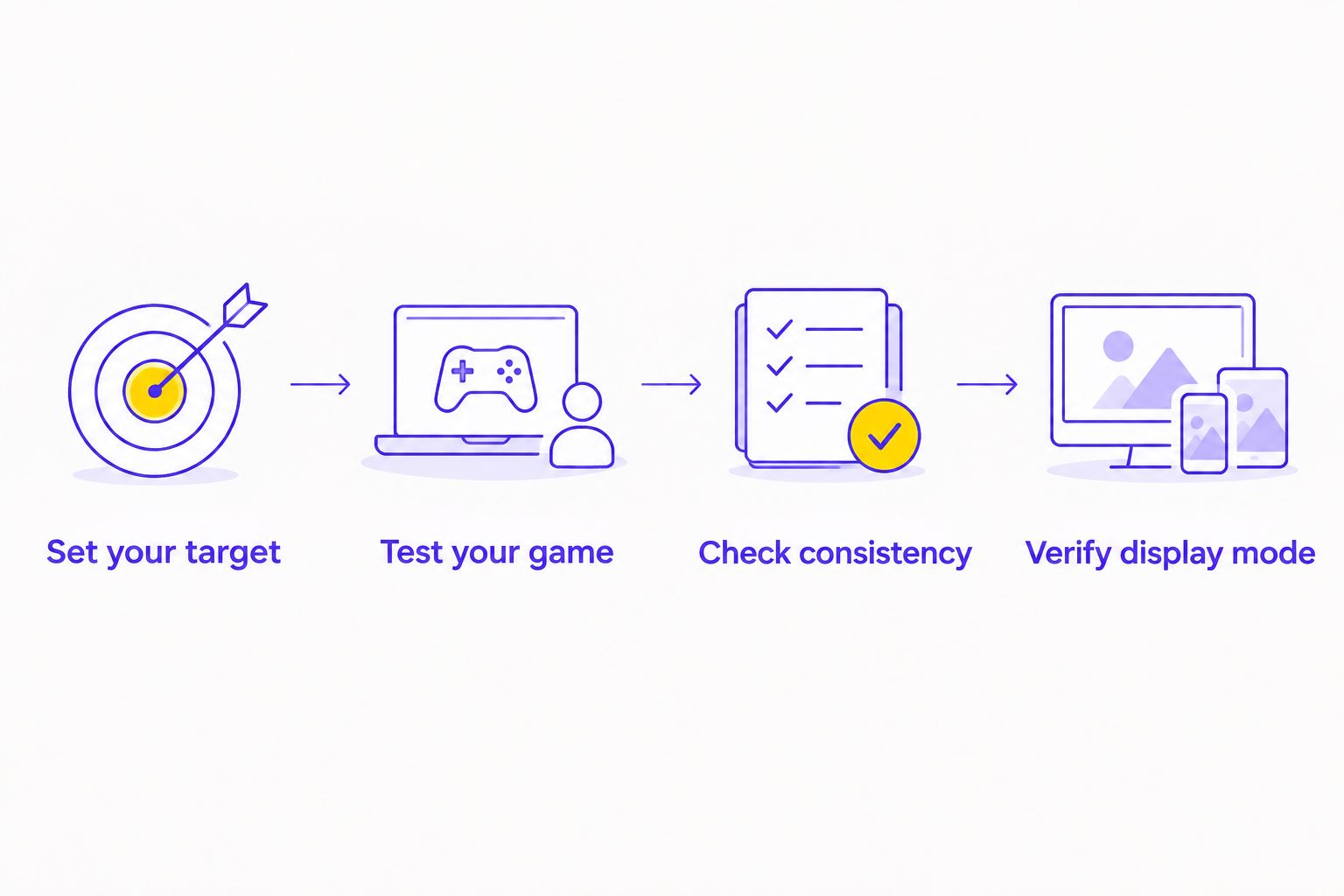
Use a repeatable process. Keep the test close to the matches you actually play, rather than selecting a quiet scene that flatters the hardware.
- Set your target. Choose the competitive settings and responsiveness you want before changing resolution. Keep the same objective throughout the comparison.
- Test your game. Compare supported rendering resolutions using the same scene or repeatable sequence. Keep other settings consistent, and record any changes.
- Check consistency. Look beyond average frames per second. Inspect frame-time spikes and demanding sections, including the background applications you normally run.
- Verify display mode. Check the intended monitor's manual for supported resolution and refresh-rate combinations. Confirm that the GPU output, connection and cable support your chosen mode.
This process distinguishes a resolution problem from a broader system limitation. If reducing resolution barely changes performance, investigate the limiting component before buying a new graphics card or monitor.
What should you check on the monitor itself?
Start with supported modes, not the headline specification. Confirm that your intended input supports the resolution and refresh rate together; separate maximum figures do not establish that combination.
Next, check independent measurements for the exact model. Look for input lag, pixel-transition behaviour and overshoot at the refresh rates you expect to use. A response-time claim is not a measurement of the whole mouse-to-screen delay.
Check lower-refresh behaviour as well. Your game will not necessarily stay at the monitor's maximum refresh rate, so an overdrive setting that looks acceptable at the top end needs scrutiny elsewhere.
Finally, assess the physical setup. The stand, viewing position and usable desk space affect how comfortably you can read the screen. A higher-resolution panel does not correct poor placement or an unsuitable screen size.
Where does Armaggeddon PC fit your shortlist?
Armaggeddon PC is best suited to Singapore buyers shopping for a gaming monitor and desktop together. Compare the monitor's requirements with the PC's intended workload rather than selecting either item in isolation.
Use Armaggeddon PC as a starting point for that combined shortlist. The benefit is a monitor-and-PC buying context; the limitation is that a product category or GPU name does not prove performance in your game.
For a 2026 decision, ask for the exact display model, supported modes and build configuration. Keep the esports objective clear: consistent frame delivery and readable motion first, extra resolution when the setup supports it.
Is 4K better than 1440p for spotting opponents?
4K provides more native detail than 1440p, but that does not guarantee better opponent detection. Screen size, viewing distance, game rendering and motion clarity all affect what you can distinguish during play.
Compare moving gameplay, not just paused scenes. Choose the display that keeps relevant targets readable at the settings and frame rates you use.
Can you run a 4K monitor at 1080p for esports?
A 4K monitor can display 1080p when that input mode is supported. The scaling method determines how the lower-resolution image appears; check the monitor and GPU settings rather than assuming identical results across models.
Lowering resolution does not automatically increase the monitor's maximum refresh rate. A separately specified dual-mode feature is different from simply selecting a lower resolution in a game.
FAQ
Is a 4K gaming monitor worth it if I only play esports?
A 4K gaming monitor is worth it for esports-only use only when it meets your frame-rate, motion-clarity and input-lag requirements. If resolution forces a compromise in those areas, prioritise a suitable high-refresh 1080p or 1440p display.
Is 1440p better than 4K for competitive gaming?
1440p is the better fit when it preserves the performance you need and 4K does not. The exact monitor still matters because resolution alone does not establish refresh rate, pixel response or input lag.
Does a 240Hz monitor have 4.17 milliseconds of input lag?
A 240Hz monitor has an approximately 4.17-millisecond refresh interval, not necessarily 4.17 milliseconds of input lag. Processing delay, scanout, pixel transitions and the rest of the system require separate consideration.
Will a 4K monitor make my game run slower?
Rendering a game at native 4K can reduce frame rate when the GPU is the limiting component. Test your game at consistent settings because CPU limits and other workload differences change the result.
Can I use a 4K gaming monitor for work as well?
A 4K gaming monitor can serve work and gaming when its connections, ergonomics and display behaviour suit both tasks. Shared resolution alone does not establish professional colour accuracy or suitability for colour-critical work.
Should I choose my graphics card or monitor first?
Choose your target game, settings and display mode first, then match the monitor and PC to that workload. Armaggeddon PC buyers should confirm the exact configuration rather than infer game performance from a GPU tier.
One last thing
Your new monitor is only as useful as the mode you enable. After connecting it, check the operating system's advanced display settings and the game's display options. Confirm the active resolution and refresh rate rather than assuming the maximum was selected automatically.
Then repeat your gameplay check. A correct specification on the box and a correct setting on the desktop are separate requirements.