

Can an ultrawide monitor be used for competitive esports?
Yes, an ultrawide monitor can be used for competitive esports if your game supports its aspect ratio, your PC sustains the required frame rate, and your competition permits the setup. Extra screen width does not guarantee a competitive advantage; prioritise motion clarity, input responsiveness and a match-ready viewing area over size.
TL;DR
- An ultrawide monitor suits competitive esports only when game support, frame rates and tournament rules align.
- Choose standard widescreen for tournament-focused practice; choose ultrawide for supported games and mixed-use screen space.
- Armaggeddon PC gaming monitor options include ultrawide 180Hz and Full HD 240Hz models with different priorities.
- Test native resolution and centred widescreen before deciding whether extra width helps your play.
WHY THIS MATTERS
A monitor can display your game correctly without being the right display for your competitive routine. Wider screens change where you look, how much your GPU renders and where interface elements sit.
For a 2026 purchase, start with your main competitive game rather than the largest panel. The guide to choosing a gaming monitor refresh rate explains the specification to assess alongside aspect ratio.
Buy for the mode you will practise in. A wide desktop is useful outside matches, but unused screen space is not an esports benefit.
Can an ultrawide monitor be used for competitive esports?
Yes. The practical question is whether the wider format improves your setup without creating a compromise you cannot accept. Separate game compatibility from competitive suitability before comparing products.
| Display format | Best for | Main benefit | Main limitation |
|---|---|---|---|
| Standard 16:9 widescreen | Players practising for a specified widescreen tournament setup | Keeps practice focused on the intended match format | Less horizontal desktop space than an ultrawide |
| Ultrawide at native resolution | Players whose competitive game supports the wider view | Uses the panel's full width without stretching | More pixels to render than a narrower resolution with the same height |
| Ultrawide with centred 16:9 output | Existing ultrawide owners who need a narrower game view | Preserves the image shape when aspect-ratio scaling is configured correctly | Leaves unused areas beside the game |
Check the actual match mode. A resolution appearing in a menu does not establish how the game handles the camera, interface or competitive restrictions.
Look for black bars, stretching, cropped content and misplaced interface elements. Then check the event's equipment rules separately; game support is not tournament approval.
Native ultrawide: use the width only when the game supports it
Best for: players who want one display for supported competitive games and everyday multitasking. Native ultrawide lets you use the full panel without deliberately stretching a narrower image. The trade-off is a larger rendering workload at equivalent vertical resolution.
A wider panel does not automatically show more useful game information. The game's camera and aspect-ratio handling determine what appears at the edges.
Before buying in 2026, inspect gameplay at the intended resolution. Check the minimap, ability indicators, inventory and scoreboard as well as the centre of the screen.
Do not treat a resolution modification as proof of native support. For competitive play, use settings permitted by the game's rules and the event organiser.
Centred 16:9: keep your ultrawide, narrow the game
Best for: ultrawide owners who want a consistent widescreen practice mode. A centred 16:9 image preserves normal proportions when the monitor or GPU supports the appropriate scaling setting. Side bars are the expected result.
Avoid stretching the image simply to fill the panel. Stretching changes displayed proportions; it does not establish that the game reveals additional information.
Check which resolutions and refresh rates remain selectable in the narrower mode. Do not assume every scaling configuration retains the panel's advertised maximum refresh rate.
This is a practical option when your ultrawide also handles work. The drawback is straightforward: you are not using the full width during competitive sessions.
Standard widescreen: prioritise your competitive format
Best for: players buying primarily for a specified tournament setup. Choose a standard widescreen monitor when matching your intended competition format matters more than desktop width. Confirm the event's actual display requirements first.
A smaller rendering workload can leave more GPU headroom, but aspect ratio alone does not determine frame rate. Resolution, graphics settings, the game engine and the rest of your PC still matter.
The limitation is less room for side-by-side applications. If work occupies most of your screen time, weigh that loss against your competitive priorities rather than treating either format as universally better.
Why ultrawide esports suitability varies
The same display can be a good fit for one player and a poor fit for another. These checks explain the difference:
- Game support: Confirm whether the game displays a wider scene, adds bars, stretches the image or crops content.
- Rendering load: Compare the exact resolutions. A 3440 × 1440 image contains more pixels than a 2560 × 1440 image.
- Motion performance: Refresh rate describes update frequency. Pixel transitions and overdrive behaviour also affect how moving objects look.
- Interface placement: Check whether important information remains easy to read without repeatedly looking away from the centre.
- Competition rules: Verify permitted equipment and settings for the event you plan to enter.
- Desk fit: Check screen position, stand depth and mouse clearance before choosing a physically wider display.
Do not use a single specification to dismiss or approve the entire format. Assess the display in the configuration you will actually use.
What should you compare before buying in Singapore?
Compare a specific ultrawide against a specific widescreen alternative. The following Armaggeddon PC gaming monitor listings illustrate the choice between wider native resolution and a higher listed refresh rate.
| Monitor | Listed specifications | Best for | Limitation to weigh |
|---|---|---|---|
| Armaggeddon PXP 34 PRO | 34-inch curved Fast VA; 3440 × 1440; 180Hz; 1ms MPRT | Supported ultrawide gaming and mixed-use screen space | Higher native pixel count than Full HD; listed MPRT is not an input-lag measurement |
| Armaggeddon PXP 27X | 27-inch IPS; 1920 × 1080; 240Hz; listed 0.5ms response time | Players prioritising Full HD and 240Hz over ultrawide width | Lower resolution and less horizontal workspace than the ultrawide option |
Armaggeddon PXP 27X is best for players choosing Full HD 240Hz over ultrawide workspace. That verdict concerns the listed resolution and refresh rate, not a measured latency comparison.
The 2026 buying decision should still include motion testing. A response-time figure and an MPRT figure describe different things; neither establishes total mouse-to-screen delay.
Check port requirements for the intended resolution and refresh rate. Confirm the necessary cable and GPU output rather than assuming that every connection delivers the same display mode.
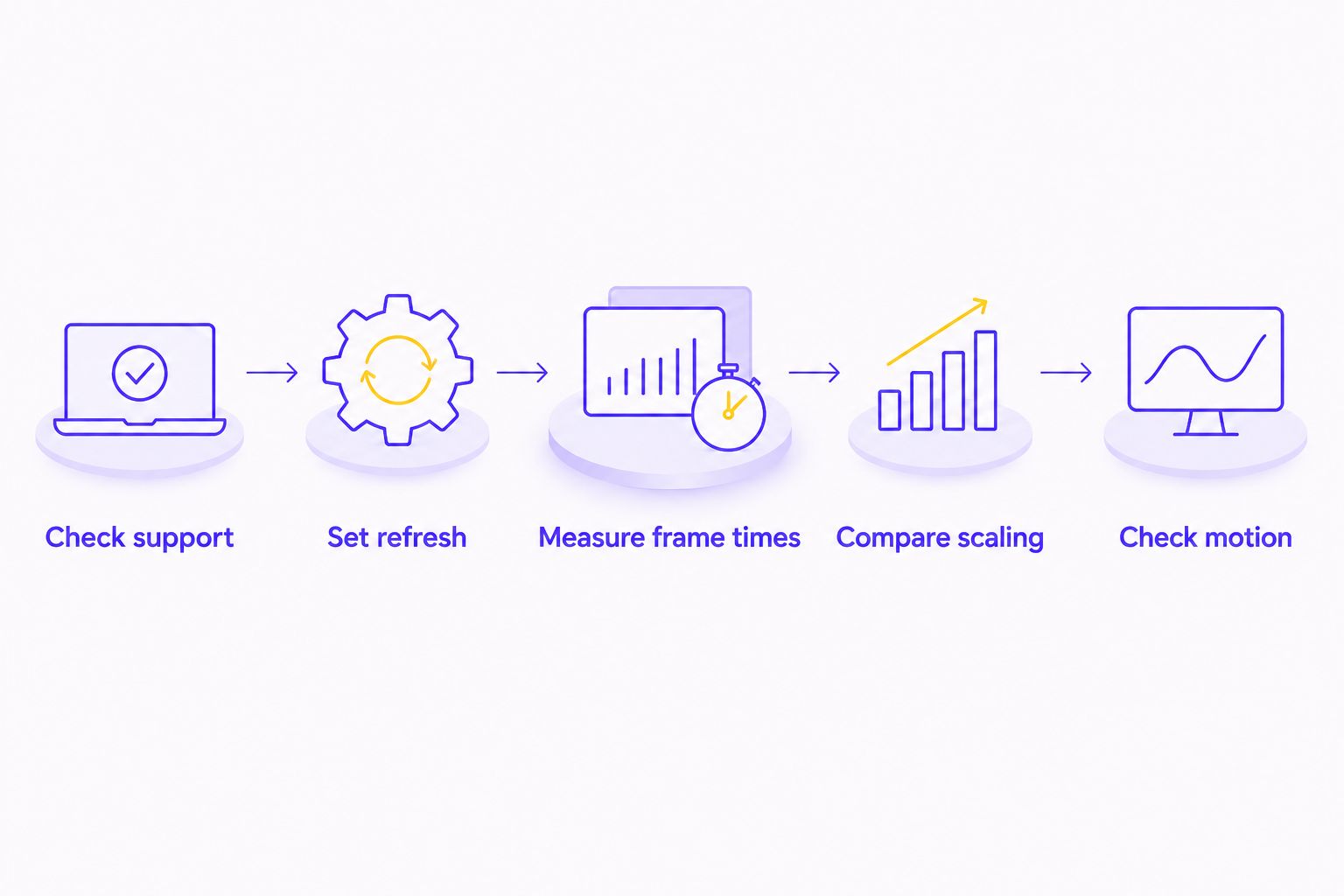
How do you test an ultrawide monitor for competitive play?
Use the same game, graphics preset and test situation when comparing display modes. Change one setting at a time so you can identify what caused a difference.
- Check support. Select native resolution and inspect the camera, image proportions and interface.
- Set refresh. Confirm the intended refresh rate in the operating system and check the game's display settings.
- Measure frame times. Use a repeatable training sequence or replay. Inspect consistency, not just the highest frame-rate reading.
- Compare scaling. Repeat the sequence with a supported centred widescreen mode. Keep unrelated settings unchanged.
- Check motion. Track moving targets and inspect trails, bright outlines and fine detail while panning.
A 2026 test should reflect your current game version and settings. Keep a record of the resolution, refresh rate, scaling and overdrive mode so you can restore the same configuration.
Do not combine your resolution test with a graphics-preset change. A better frame-rate result would then leave you unable to separate the effect of fewer pixels from the effect of reduced visual settings.
Does a curved ultrawide improve competitive aim?
A curved ultrawide changes the physical viewing surface; it does not establish better aim. Treat curvature as a desk-fit and viewing-preference decision, not a substitute for motion performance.
Place the centre of the display directly in front of your normal seated position. Check that the screen and stand leave enough room for your mouse movement.
Move only the display when testing a different viewing position. Keep your chair, sensitivity and mouse space consistent so you are not changing several parts of your setup together.
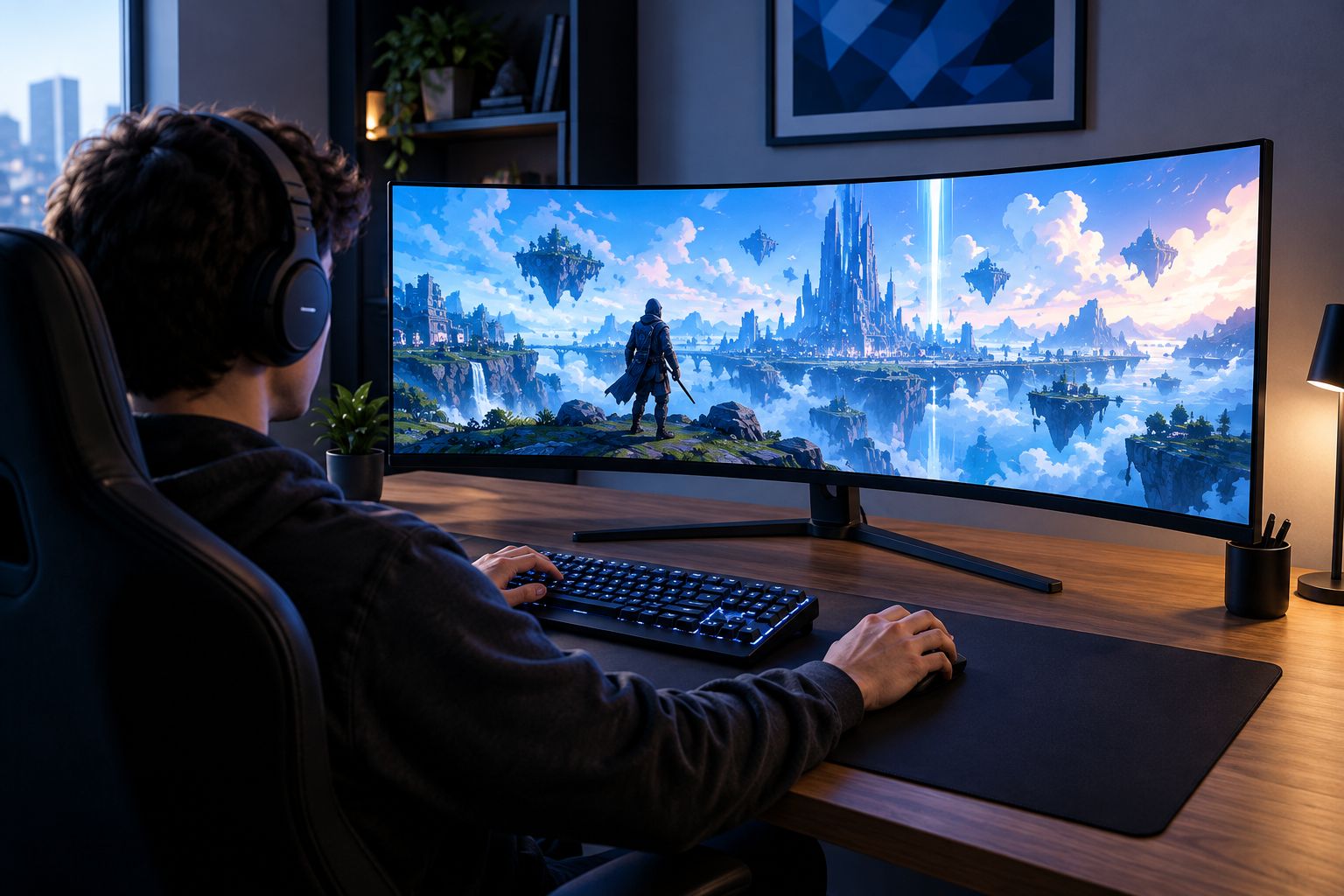
On a compact Singapore desk, measure the usable surface rather than just the desktop's advertised width. Stand feet, speakers and the keyboard all occupy space that your monitor diagonal does not describe.
Should you replace an ultrawide you already own?
Keep the existing display until you identify a specific problem. Test supported native output and centred widescreen before buying a replacement.
Write down the reason to change: unsupported aspect ratio, unsuitable scaling, distracting interface placement or unsatisfactory motion clarity. A clear problem gives you a specification or feature to check on the replacement.
Do not replace a monitor solely because another format appears in a professional player's setup. Your game, competition requirements and measured experience should decide the purchase.
What should esports teams check before ordering monitors?
Start with a specification brief and GET A QUOTATION. Team and institutional purchases need a repeatable training configuration, not a mixture of individually preferred screen formats.
Specify the game, resolution, refresh rate, connection requirements, scaling behaviour and mounting needs. Ask for the exact model and applicable support terms in writing.
Test a sample configuration before standardising the room. Check that every training station can use the intended mode and that players can restore the agreed settings after changes.
FAQ
Can I use an ultrawide monitor for competitive esports in 2026?
Yes, an ultrawide monitor can be used for competitive esports when the game supports the intended mode and the competition permits the setup. Check frame-time consistency, image scaling and interface placement before committing.
Is an ultrawide monitor better than a 16:9 monitor for esports?
An ultrawide monitor is not automatically better than a 16:9 monitor for esports. Choose the format that supports your game, competitive requirements and preferred viewing area without unacceptable performance compromises.
Can I play at 16:9 on an ultrawide without stretching?
Yes, a supported centred 16:9 mode can preserve image proportions on an ultrawide monitor. Check the monitor or GPU scaling settings and confirm the refresh rates available in that mode.
Does a higher refresh rate mean lower input lag?
A higher refresh rate alone does not establish lower total input lag. Rendering, display processing, pixel response and configuration also affect the delay between an input and its visible result.
Does a curved monitor mean it is ultrawide?
No, curvature and aspect ratio describe different properties. A curved monitor can use a standard widescreen format; check its resolution and aspect ratio rather than its shape.
Will an ultrawide monitor reduce my frame rate?
A higher ultrawide resolution increases the number of pixels rendered compared with a narrower resolution at the same vertical pixel count. The frame-rate effect depends on the game, settings and whether your PC is limited by GPU rendering performance.
Should I choose 180Hz ultrawide or 240Hz Full HD for competitive gaming?
Choose 240Hz Full HD when the higher listed refresh rate and lower rendering resolution match your competitive priorities. Choose 180Hz ultrawide when supported wider gameplay and mixed-use workspace matter more; test motion quality separately.
ONE LAST THING
Black bars are not a setup failure. On an ultrawide running a correctly configured centred widescreen image, they preserve proportions instead of forcing the game across the entire panel.
Before replacing hardware, save a dedicated competitive display configuration. A repeatable practice setup is more useful than filling every part of the screen.