

How to Reduce Monitor Motion Blur for Gaming (2026)
Monitor motion blur comes from two specs fighting each other — slow pixel response time and low refresh rate — not from one broken setting you forgot to toggle. Fix both at once and the smearing most gamers complain about in 2026 clears up after a single pass through the OSD and a few driver settings.
TL;DR
- Motion blur drops sharply once refresh rate hits 144Hz and response time hits 1ms GtG or faster.
- Backlight strobing (ULMB, MBR) removes most residual blur but dims the screen and can add input lag.
- A 240Hz monitor with 0.5ms response time, like the Armaggeddon PXP 27X, handles fast-paced shooters with minimal smearing.
- Matching in-game FPS to your refresh rate matters as much as the panel spec on the box.
The numbers that matter
144Hz
Minimum refresh rate to cut blur
1ms GtG
Response time that stops ghosting
600Hz
Fastest refresh rate sold in 2026
Armaggeddon PXP 24 XGX
Why this matters
Motion blur is not cosmetic — it costs you frags, causes eye strain over a long session, and makes a monitor feel "laggy" even when input lag is fine. Buyers in Singapore chasing a gaming monitor upgrade in 2026 usually blame the GPU when the real bottleneck is a 5ms IPS panel running at 75Hz. Understanding which spec actually causes the smear stops you from overspending on the wrong upgrade.
The fix is rarely one thing. A 240Hz panel with a slow response time still smears. A fast panel stuck at 60Hz still smears. Both specs have to move together, and Armaggeddon PC stocks monitors built around that pairing rather than one headline number.
How to reduce monitor motion blur for gaming
- Raise the refresh rate to 144Hz or higher. Each frame stays on screen for a shorter window, so your eye tracks less smear between frames.
- Pick a panel rated 1ms GtG or faster. Gray-to-gray response time is the spec that actually governs pixel smearing, not refresh rate alone.
- Turn on backlight strobing if the monitor supports it. ULMB, ULMB 2, or MBR modes flash the backlight between frames, which is the closest thing to eliminating blur outright.
- Enable FreeSync or G-SYNC. Screen tearing gets misread as blur by a lot of gamers — for a deeper walkthrough see reducing screen tearing with G-SYNC.
- Match your FPS to the panel's refresh rate. A 240Hz monitor fed 90 FPS wastes the panel's speed advantage.
- Tune the overdrive/response-time setting in the OSD. Pushed too aggressively, overdrive causes inverse ghosting — bright trailing halos that look worse than the original blur.
144Hz+ refresh rate: the first fix
A 60Hz monitor redraws the screen every 16.6ms; a 144Hz panel redraws every 6.9ms; a 240Hz panel redraws every 4.2ms. Less time per frame means less distance for a moving object to travel before the next redraw, which is why refresh rate alone noticeably reduces perceived blur even before you touch anything else. Read the full breakdown in choosing the right refresh rate for gaming.
1ms response time panels stop the smearing
Response time measures how fast a pixel shifts between two shades of gray. A 5ms IPS panel still leaves a visible trail behind fast-moving objects even at 144Hz, because the pixel hasn't finished changing before the next frame arrives. The Armaggeddon PXP 24X runs a Fast VA panel at 240Hz with 1ms response, and the Armaggeddon PXP 27X pairs 240Hz with a 0.5ms IPS panel — both close the gap between refresh rate and pixel speed instead of leaving one behind.
Backlight strobing (ULMB/MBR) cuts blur to near zero
Strobing modes turn the backlight off between frames instead of leaving it lit continuously, which is what causes the eye to perceive a smeared trail in the first place. The trade-off: strobing dims the panel noticeably and, on some monitors, can't run at the same time as FreeSync or G-SYNC. Verdict: turn strobing on for single-player or casual sessions where variable refresh isn't critical, and leave it off for competitive play where VRR matters more.
Matching FPS to refresh rate closes the loop
A 240Hz gaming monitor delivers zero benefit if your GPU only pushes 100 FPS. Cap your frame rate at or just under your panel's refresh rate using the in-game limiter or your GPU driver's frame cap — this also keeps input lag consistent instead of spiking when frame rate swings wildly.
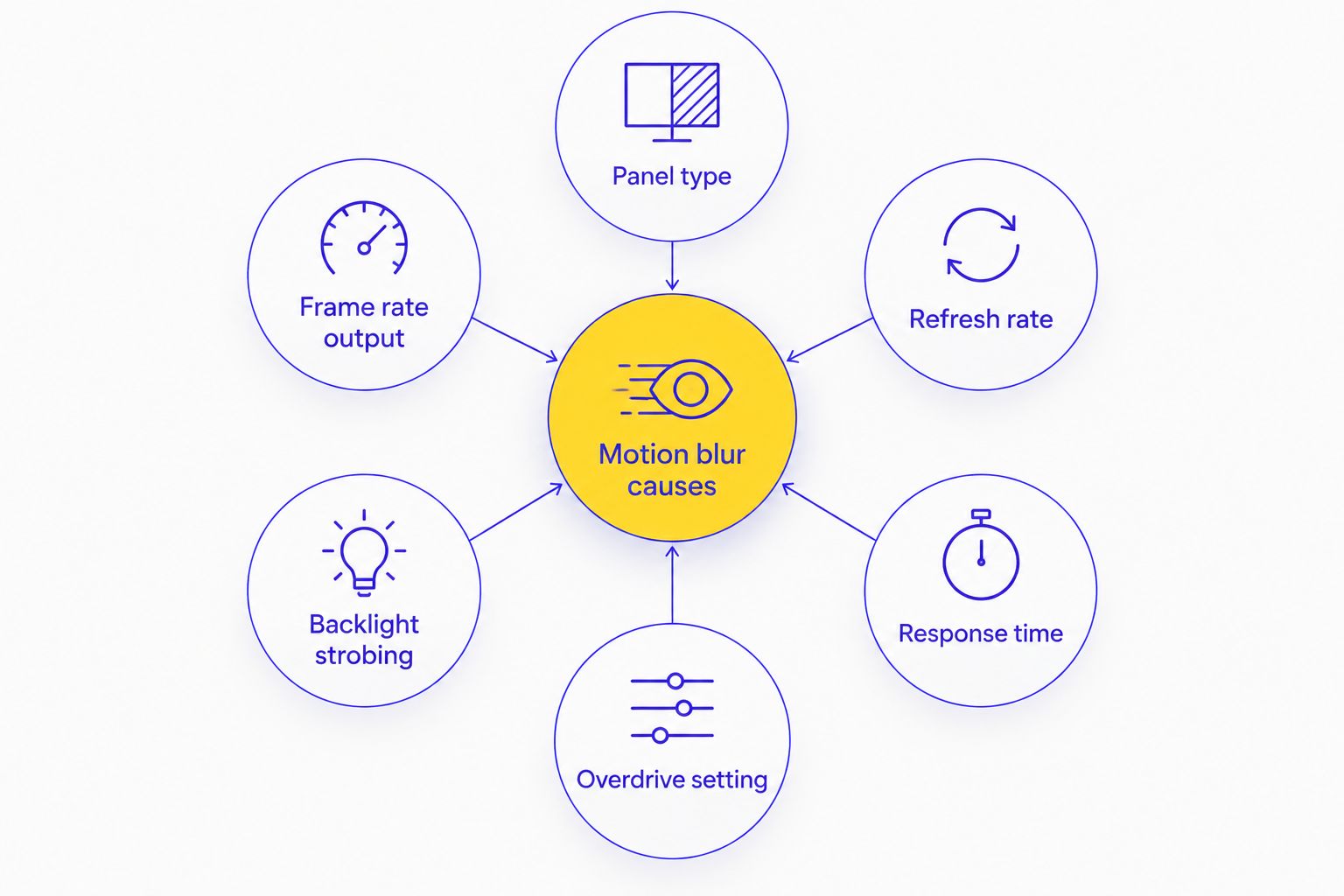
Why motion blur varies from monitor to monitor
- Panel type — TN and Fast VA panels typically hit lower response times than standard IPS; OLED responds almost instantly.
- Refresh rate — 60Hz, 144Hz, 240Hz, and 600Hz panels each redraw the screen at a different interval, directly changing how long smear is visible.
- Response time (GtG) — the actual spec that governs how fast a pixel shifts shade, and the number most responsible for visible trailing.
- Overdrive/overshoot tuning — set too high, it overcorrects and creates bright ghost outlines instead of removing them.
- Backlight strobing compatibility — not every panel supports ULMB or MBR alongside variable refresh rate at the same time.
- GPU frame rate output — a 240Hz panel spec is wasted if the graphics card can't sustain frames anywhere near that number.
Does a higher refresh rate alone fix motion blur?
No — refresh rate and response time are separate specs, and a 240Hz panel with a slow 5ms response time still smears because the pixel hasn't finished transitioning before the next frame lands. You need both numbers moving together, not just the refresh rate on the spec sheet.
Is OLED or IPS better for motion blur?
OLED wins on raw pixel response because it doesn't rely on liquid crystal transition at all, giving it near-instant pixel switching compared to even a fast IPS panel. Fast IPS options like the Armaggeddon PXP 27X close most of that gap at a fraction of typical OLED panel cost, which is why they remain the volume pick for competitive gamers in 2026.
Can monitor settings alone fix motion blur without new hardware?
Turning on overdrive and disabling any motion-smoothing or interpolation feature helps, but settings can't overcome a hardware ceiling — a 75Hz panel stays a 75Hz panel no matter what you toggle in the OSD. Settings optimize what the panel can already do; they don't add refresh rate or shave milliseconds off response time.
For gamers assembling a full gaming monitor and desktop setup rather than swapping one part, matching the panel to a build that can actually hit the target frame rate matters more than the monitor spec alone — a full custom build page is worth a look on the way to checkout.
Low-blur gaming monitors from Armaggeddon PC

24-inch Full HD TN panel, 600Hz refresh, 0.1ms response, FreeSync and G-SYNC compatible.
SGD 459

27-inch Full HD IPS panel, 240Hz refresh, 0.5ms response, FreeSync and G-SYNC compatible.
SGD 199

Dual mode 4K 160Hz or FHD 320Hz Fast IPS, 0.5ms response, HDR400, FreeSync and G-SYNC compatible.
SGD 499
FAQ
What's the best refresh rate to reduce motion blur for gaming in 2026?
144Hz is the minimum threshold where most gamers notice a clear drop in motion blur, and 240Hz reduces it further for fast-paced shooters. Refresh rate alone won't fix everything — response time has to keep up too.
Is 1ms or 0.5ms response time better for motion blur?
0.5ms response time clears pixel transitions faster than 1ms, leaving a shorter trail behind fast-moving objects. The difference is most visible in competitive shooters at 240Hz and above, less so in slower single-player games.
Does G-SYNC or FreeSync reduce motion blur?
G-SYNC and FreeSync fix screen tearing, not motion blur directly, but tearing is often mistaken for blur by gamers. Turning on variable refresh rate removes that confusion and makes real blur easier to diagnose.
How much does a low-blur gaming monitor cost in Singapore?
Pricing varies by panel type, refresh rate and size, so check current listings directly on the Armaggeddon PC store for exact figures. Fast VA and IPS panels at 240Hz sit in the mid-range tier of the lineup.
Is OLED worth it just to reduce motion blur?
OLED gives the fastest pixel response of any panel type currently sold, which all but eliminates smearing on fast motion. It's worth it if blur is your main complaint; for most competitive gamers a fast IPS or VA panel at 240Hz gets close enough.
Can backlight strobing be used with G-SYNC at the same time?
On many monitors, no — backlight strobing modes like ULMB and G-SYNC/FreeSync are mutually exclusive because both control the display timing. Check your specific monitor's OSD to confirm which modes can run together.
Does overdrive setting affect motion blur?
Yes — overdrive pushes pixels to transition faster, but set too high it overshoots and creates a bright ghost trail instead of removing the original blur. Most monitors default to a safe middle setting; raise it one step at a time.
Why does my 240Hz monitor still show motion blur?
A 240Hz monitor still blurs if the response time is slow, if your GPU isn't hitting 240 FPS, or if overdrive is set too low. Check response time and actual in-game frame rate before assuming the panel is defective.
One last thing
The spec buyers overlook most in 2026 is overdrive tuning, not refresh rate — a 240Hz panel with overdrive left on the wrong preset can look worse than a well-tuned 144Hz panel. Before returning a monitor over "blur," spend five minutes cycling through the OSD's overdrive presets; it's the cheapest fix on this entire list and it's already built into the monitor you own.