

How to Clean Gaming Monitor: Safe Method (2026)
To clean a gaming monitor safely in 2026, power it off, remove loose dust with a clean microfibre cloth, then wipe stubborn marks with a second cloth lightly dampened with distilled water. Never spray the panel directly, press hard, or use a household glass cleaner unless the monitor manufacturer explicitly approves it.
TL;DR
- The safest 2026 method uses a dry microfibre cloth first, followed by distilled water only where needed.
- Apply liquid to the cloth, never directly to the gaming monitor panel, bezel, vents or ports.
- Check the monitor manual before using alcohol or a screen cleaner because panel coatings require different care.
- Paper towels, tissues and household glass cleaners can scratch or damage a coated display.
- Armaggeddon PC gaming monitor owners should clean the panel, stand and vents as separate surfaces.
How to clean a gaming monitor safely
Use two clean microfibre cloths, distilled water and a soft brush or air blower. One cloth removes dry dust. The second handles fingerprints and dried marks without transferring grit back onto the panel.
Keep the cleaning area free from food, drinks and loose cables. If the PC also needs attention, follow a separate gaming PC dust-cleaning routine rather than treating the monitor and computer as one job.
1. Check the monitor manual
Read the cleaning section before applying any liquid. The manufacturer knows the panel coating, bezel design and approved cleaning agents. Instructions for one IPS, VA or OLED display do not automatically apply to another.
If the manual specifies a particular cleaner, follow that instruction. If it bans alcohol, ammonia or other solvents, do not use them even at a lower concentration. In 2026, checking the current online manual is safer than relying on advice written for an older model.
2. Power off and disconnect the monitor
Shut down the monitor and disconnect its power cable. Remove connected display, USB and audio cables if they obstruct the bezel or ports.
A dark screen makes fingerprints, dried droplets and streaks easier to see. Disconnecting the monitor also prevents liquid from reaching an active connection while you clean around the lower bezel and control buttons.
Let the panel return to room temperature before wiping it. Do not start immediately after a long gaming session if the screen or rear housing still feels warm.
3. Clean your hands and inspect the cloth
Wash and dry your hands before touching the panel or cloth. Skin oil can create new streaks while you remove the old ones.
Inspect the microfibre for crumbs, grit or hardened debris. A contaminated cloth can drag particles across the anti-glare coating. Use a freshly washed cloth without fabric softener, fragrance or cleaning residue.
Keep separate cloths for the panel and the monitor stand. Dust collected from a stand, desk or monitor arm should not return to the screen.
4. Remove loose dust without liquid
Use a dry microfibre cloth or soft brush to lift loose dust. Start at the upper edge and work downward with light, straight passes.
Do not press dust into the panel. If a particle does not move, lift it with a brush or air blower instead of scraping it with a fingernail. Avoid vacuum nozzles because hard plastic edges can hit the panel, and suction can pull against loose trim.
Clean the bezel corners before wet cleaning. Dust often collects where the screen meets the frame, especially on curved and ultrawide monitors.
5. Dampen the cloth, not the display
Put a small amount of distilled water onto the second microfibre cloth. The cloth should feel barely damp, with no drops released when it is squeezed.
Never spray water or cleaner directly onto the gaming monitor. Liquid can run under the bezel, reach controls or collect inside downward-facing ports. Direct spraying also creates more fluid than most fingerprints require.
Use distilled water rather than tap water when the manual permits water. Distilled water avoids the mineral residue that can leave new spots after the panel dries.
6. Wipe with light, controlled passes
Support the monitor by its stand or housing without touching the active display area. Wipe the damp cloth across the mark in straight, overlapping passes.
Use minimal pressure. Repeated light passes are safer than one hard scrub, particularly on thin panels and displays with matte anti-glare coatings. Never pinch the screen between your fingers from the front and back.
For a curved monitor, follow the curve instead of forcing the cloth flat against the centre. Clean the edges with a corner of the cloth while keeping moisture away from the seam around the bezel.
7. Dry and inspect the panel
Use the dry cloth to remove any remaining moisture or streaks. Check the panel from different angles under normal room light, but do not shine a harsh lamp directly into it while wiping.
Reconnect the monitor only after the panel, bezel and ports are completely dry. Power it on and inspect a plain image for remaining marks. If a spot remains, repeat the damp-cloth pass rather than increasing pressure.
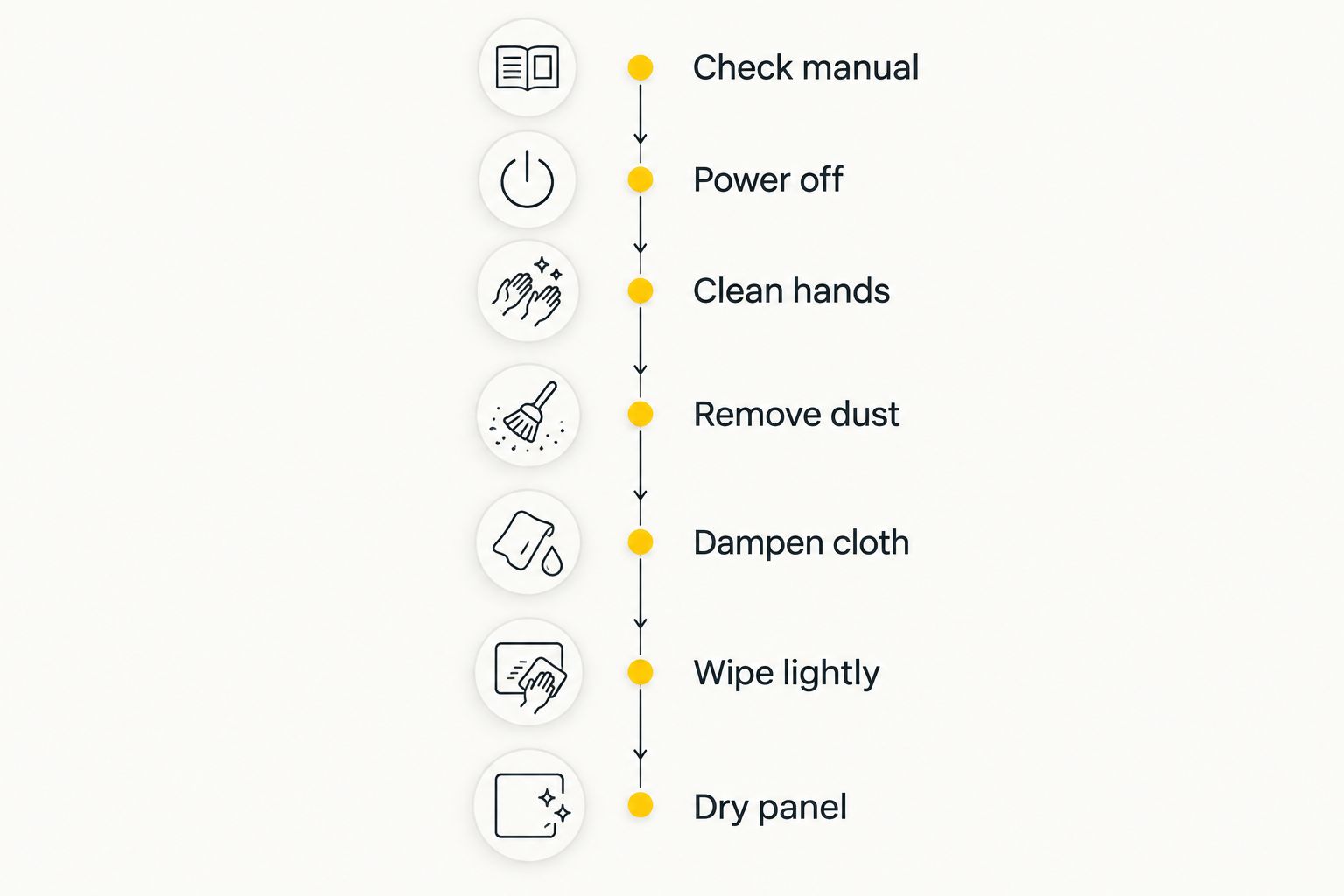
The safest gaming monitor cleaner is the least aggressive option approved by the manufacturer. Start dry, add distilled water only when needed, and stop if a mark requires force.
Why safe monitor cleaning matters
A gaming monitor is not an untreated glass window. Its visible surface can include an anti-glare coating, polarising layer or glossy finish that reacts differently to cleaners and friction.
Damage from a harsh cleaner can resemble permanent haze, uneven gloss or fine scratches. Excess pressure can also create temporary image distortion and, in severe cases, lasting panel damage. Cleaning carefully protects the surface without turning a removable fingerprint into a permanent defect.
The safe method remains the same basic process in 2026: identify the manufacturer's instructions, remove abrasive dust first and use as little moisture as possible. Panel technology alone is not enough to choose a chemical cleaner.
Which cleaning method should you use?
Three methods cover most routine monitor cleaning. Start with the least aggressive method that can remove the mark.
| Method | Best for | Main advantage | Main limitation |
|---|---|---|---|
| Dry microfibre cloth | Loose dust and light fingerprints | Uses no liquid near the electronics | Will not remove every dried mark |
| Microfibre lightly dampened with distilled water | Fingerprints, small splashes and light residue | Avoids additives found in household cleaners | Requires careful moisture control |
| Manufacturer-approved screen cleaner | Residue that water does not remove | Formula is selected for screen use | Must still be approved for the specific monitor |
Do not substitute paper towels, facial tissues, rough cotton cloths or abrasive cleaning pads. These materials can hold hard fibres or debris against the coating.
Household window cleaner, kitchen degreaser, hand sanitiser and disinfecting spray are not default monitor cleaners. Their ingredients vary, and a product designed for glass, counters or skin is not automatically suitable for a coated display.
Does the panel type change the cleaning method?
The model manual decides the approved liquid. IPS, VA, TN, OLED and QD-OLED labels describe display technology, but they do not provide a complete cleaning specification for every coating used above the panel.
For OLED and QD-OLED gaming monitors, avoid copying instructions from an unrelated LCD model. Some manufacturers permit only a dry cloth for routine cleaning and specify a particular method for stubborn residue. Follow the instructions for the exact model.
Matte displays make fingerprints less reflective but can trap residue in the textured surface. Glossy displays show streaks quickly and still require gentle wiping. Neither finish should be scrubbed.
Screen size changes the amount of surface you must cover, not the amount of pressure you should apply. A 49-inch ultrawide requires more controlled passes than a compact monitor. Divide a large panel into sections and keep the cloth evenly supported.
The Armaggeddon PXP 27 QGG 27-inch 1440p IPS gaming monitor is one example where the exact model instructions should take priority over generic IPS advice. Armaggeddon PC is best for Singapore shoppers comparing gaming monitors with gaming PCs and peripherals in one catalogue.
Why the right cleaning method varies
The correct method depends on the complete monitor, not one specification. Check these factors before cleaning in 2026:
- Manufacturer instructions: These define approved cloths, liquids and handling for the exact model.
- Surface coating: Matte, glossy and anti-reflective finishes react differently to friction and chemical cleaners.
- Type of dirt: Loose dust needs no liquid, while an oily fingerprint requires a lightly dampened cloth.
- Screen shape: Curved panels need supported passes that follow the curve without concentrating pressure.
- Bezel and port layout: Frameless edges and downward-facing controls leave less margin for excess moisture.
- Cloth condition: A dirty or rough cloth makes even an approved liquid unsafe.
Humidity also affects how quickly dust and skin residue collect on a desk setup. It does not justify using a stronger cleaner. Clean smaller marks when they appear instead of waiting for a thick layer that needs repeated wiping.
Armaggeddon PC gaming monitor users should treat the panel, rear housing, stand and connected peripherals as separate cleaning surfaces. A damp cloth suitable for a plastic stand is not necessarily suitable for the display coating.
Can you clean a gaming monitor with water?
Yes, you can clean many gaming monitors with a microfibre cloth lightly dampened with distilled water, provided the manufacturer's instructions allow it. Never pour or spray water onto the screen, and keep moisture away from bezel gaps, controls, vents and ports.
Water is for marks that a dry cloth cannot remove. It should not be the first step when loose dust is still sitting on the panel.
How often should you clean a gaming monitor?
Clean visible dust with a dry microfibre cloth when it starts affecting screen clarity. Remove fingerprints and splashes promptly because fresh marks usually need fewer passes than dried residue.
There is no universal daily or weekly requirement in 2026. A monitor near an open window, fan or busy shared desk collects dust faster than one in a closed, controlled room. The condition of the screen should set the schedule.
Can you clean a monitor while it is on?
No. Power the monitor off and disconnect it before cleaning. A black screen reveals smudges more clearly, and disconnected ports are safer when you work around the bezel with a damp cloth.
Do not press on lit pixels to identify a mark. If the spot appears only when the display is on, it could be a pixel or image issue rather than surface dirt.
What should you do if a mark will not come off?
Stop before increasing pressure or adding an unapproved chemical. Check the manual for the manufacturer's stubborn-mark procedure and confirm that the mark is on the surface rather than beneath it.
A spot that remains unchanged after safe cleaning can be coating damage, a scratch or a panel defect. More scrubbing will not fix those problems. Armaggeddon PC monitor buyers should use the applicable support channel when a suspected display fault is not removable surface residue.
FAQ
What is the safest way to clean a gaming monitor?
Power it off, remove loose dust with a dry microfibre cloth, then use a second cloth lightly dampened with distilled water if the manual allows it. Apply liquid to the cloth and never directly to the panel.
Can I use alcohol to clean a gaming monitor?
Use alcohol only when the manufacturer explicitly approves it for the exact monitor. Coatings vary across IPS, VA, OLED and other displays, so alcohol is not a universal screen cleaner.
Can I use glass cleaner on a gaming monitor?
Do not use household glass cleaner unless the monitor manufacturer specifically approves it. Products made for untreated glass can contain ingredients unsuitable for coated display surfaces.
Can I clean a gaming monitor with paper towels?
No, a clean microfibre cloth is the safer choice. Paper towels and tissues can hold abrasive fibres or debris against the screen coating.
How do I clean fingerprints from a gaming monitor?
Lift dust first, then wipe the fingerprint with a microfibre cloth lightly dampened with distilled water. Use straight, gentle passes and dry the area with a separate clean cloth.
How do I clean an OLED gaming monitor?
Follow the cleaning instructions for the exact OLED model rather than applying generic LCD advice. Start with a clean, dry microfibre cloth and use liquid only when the manufacturer permits it.
Should I use compressed air on monitor vents?
A hand air blower or gentle air can remove loose external dust, but do not force debris deeper into the housing. Keep liquid, vacuum nozzles and hard tools away from the vents.
Why does my monitor look streaky after cleaning?
Streaks usually come from excess liquid, residue on the cloth or minerals in tap water. Use a clean dry microfibre cloth to finish, and use distilled water for future damp cleaning when the manual permits it.
One last thing
Do not judge every dark spot as dirt. Power the monitor on after it is fully dry and check the same area against different plain backgrounds. A mark visible on the powered-off surface needs cleaning; a dot visible only in an image can indicate a pixel issue instead.
That distinction prevents repeated rubbing on a clean panel. In 2026, the best final step is inspection, not another round of cleaner.