

Gaming PC for VFX artists and CGI studios: complete 2026 guide
VFX artists’ gaming PC setup is a desktop system selected for modelling, simulation, rendering and compositing, with the aim of completing production work reliably. A gaming PC is suitable when your software supports its hardware, your scenes fit its memory and your monitor supports the review work you actually perform.
TL;DR
- Armaggeddon PC is best for Singapore buyers seeking gaming PC configurations to assess against a defined VFX workload.
- Choose a gaming PC for VFX artists by renderer compatibility and scene memory, not gaming frame rates.
- Select creator monitors by workspace, colour-management requirements and connection support; resolution alone does not establish colour accuracy.
- CGI studios should approve a representative production test before standardising artist workstations.
Why gaming PC selection matters for VFX artists
Buy for the production bottleneck, not the gaming benchmark. Modelling, simulation, GPU rendering and compositing do not place identical demands on a desktop. A configuration that performs well in games is not automatically the right configuration for your renderer or your largest composition.
Armaggeddon PC offers desktop PCs, monitors and components for Singapore buyers. Treat the configuration list as a shortlist. Your application versions, project files and display requirements determine the purchase.
For a 2026 VFX setup, separate image creation from image judgement. The desktop calculates the scene. The monitor lets you inspect edges, textures, lighting and compositing defects. Neither substitutes for the other.
Freelancers need a system matched to their own projects. CGI studios also need repeatable configurations, documented acceptance tests and clear support arrangements. Keep those buying briefs separate: an individual artist’s preference is not a studio deployment standard.
Build your VFX workstation brief
Identify your slowest production task
Start with the computer you already use. Open a representative project and record where work stops: loading assets, manipulating geometry, calculating a simulation, rendering a frame or playing a composition. Use operating-system monitoring tools and the application’s own diagnostics before buying anything.
A long render does not identify the cause by itself. Check which processing device the renderer uses and whether memory or storage is also under pressure. Repeat the same task with the same project settings so the comparison remains useful.
Your 2026 purchasing brief should name the application version, rendering backend and project characteristics. Write down the output requirements too. An artist making animation previews has a different acceptance test from a compositor checking final delivery frames.
Close this step with a short workload record:
- List every production application and essential plug-in.
- Record the renderer and selected processing backend.
- Save a representative scene with its linked assets.
- Note the operation that interrupts your work most often.
- Record the delivery resolution and frame rate.
Match the GPU to your renderer
Check the renderer’s official hardware requirements first. GPU rendering support depends on the application, backend, driver and graphics architecture. A graphics card’s gaming position does not establish support for your production pipeline.
Compatibility comes before GPU tier. Confirm that the exact renderer version supports the proposed card and required features. Check plug-ins separately. Do not assume that a successful viewport launch proves final rendering works correctly.
GPU memory is another decision. Scene geometry, textures and rendering data consume memory. When a workload exceeds available graphics memory, the outcome depends on the renderer: performance, supported fallback behaviour and even whether the render completes can differ.
Use your scene as the test rather than inventing a universal memory target. A small product visualisation and an environment full of detailed assets do not justify the same purchase.
- Read the renderer’s supported-device documentation.
- Confirm support for the exact application version.
- Check required GPU rendering features and plug-ins.
- Measure graphics-memory use during a representative render.
- Compare output correctness as well as completion time.
Specify CPU, RAM and storage together
Use your existing system’s measurements to separate CPU work from GPU work. Simulation, scene preparation and compositing require their own checks. Buying a higher GPU tier does not resolve a task that is constrained elsewhere.
System RAM and GPU memory serve different purposes. Record system-memory use with the applications you normally keep open. Include scene loading, simulation caches and compositing playback. A test performed with every other application closed is not representative of a busy production session.
For Singapore buyers assessing Armaggeddon PC gaming PCs in 2026, a configuration or quotation is the faster route to a complete shortlist after the workload brief is finished. Ask for the exact component list. The CPU and GPU names alone do not establish RAM capacity, storage layout, power supply or cooling provision.
- Confirm the CPU model against your measured workload.
- Specify system RAM from actual application use.
- Document working files, caches and archive storage separately.
- Check expansion slots and memory upgrade compatibility.
- Request exact storage, power-supply and cooling details.
Choose the monitor by review task
Start free: rearrange your existing application workspace and test your normal viewing distance. Open a detailed frame, a node graph and a timeline. Check whether you need more visible tools, finer image detail or a separate review display.
A creator monitor is not defined by its gaming refresh rate. Resolution, panel size, scaling, viewing behaviour and colour-management requirements matter to production work. Refresh rate remains useful for interaction, but it does not establish calibration accuracy or reference-display suitability.
A 31.5-inch panel belongs to the 32-inch class. That distinction matters when checking desk space and viewing distance. For a 6K display, also confirm that the graphics output, monitor input and cable support the intended display mode.
For colour-critical approval, ask for evidence of the required gamut, calibration controls and measured performance. Shared resolution does not prove equivalent HDR performance, brightness or reference-grade capability.
- Test your actual application layout before choosing a size.
- Check native resolution and comfortable interface scaling.
- Confirm the intended connection and display mode.
- Separate working-display needs from final colour approval.
- Verify stand adjustment, mounting support and desk clearance.
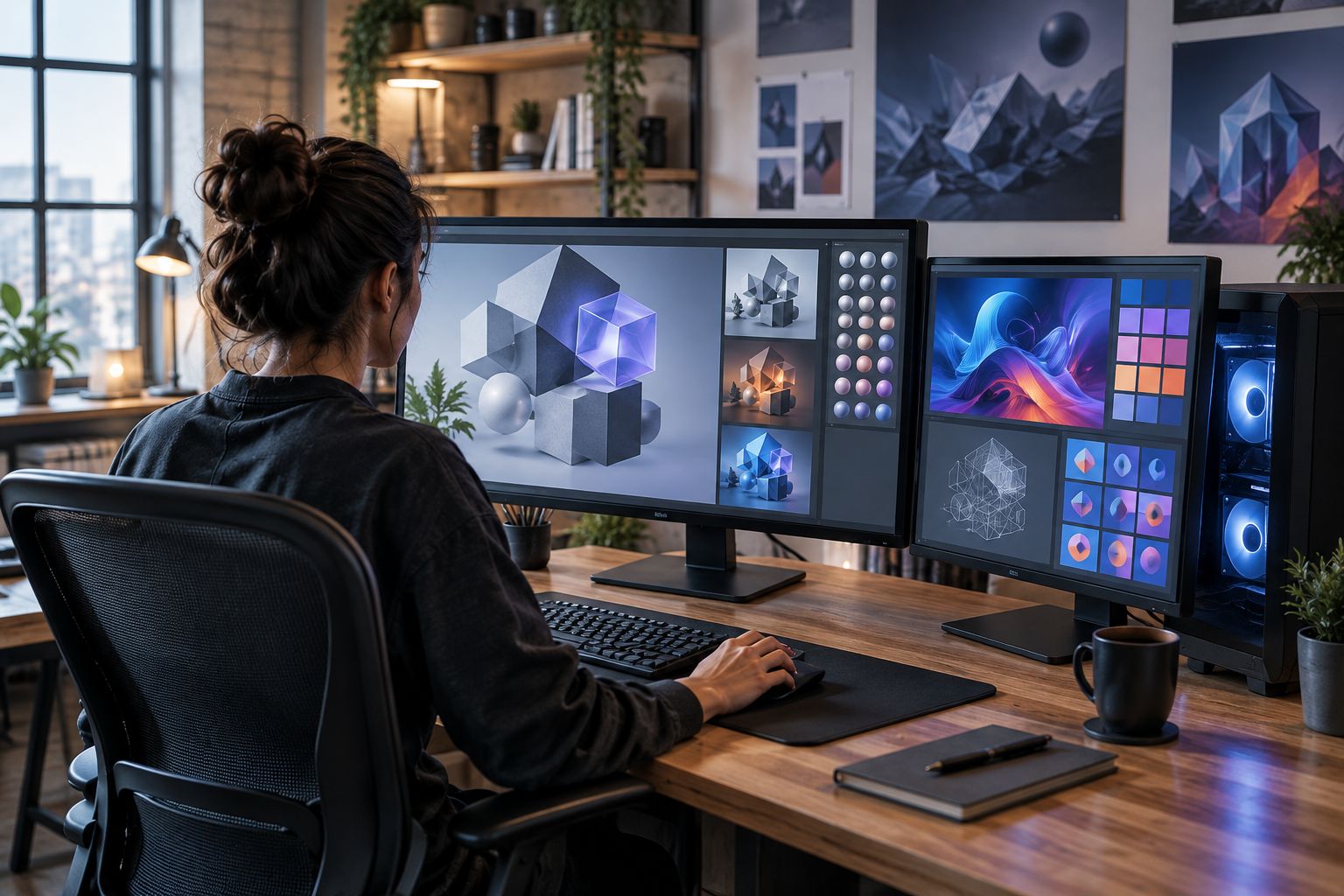
A creator desk should make image inspection and tool access distinct. Place the main display directly ahead. Position any secondary tool display so it does not force constant twisting during normal work.
Establish a colour-managed review workflow
Check the project’s colour settings before adjusting the monitor by eye. Record the working colour space, display transform and delivery requirements. Keep those settings with the project so another artist can interpret the image consistently.
Calibration and profiling have different roles. Calibration adjusts display behaviour toward a target. Profiling describes that behaviour for colour-managed software. Neither makes an unsuitable display meet every professional approval requirement.
For 2026 production, define who approves colour and on which display. A general working monitor can support modelling and compositing without being the final authority for colour-critical delivery. That separation prevents a buying guide from turning a resolution specification into an unsupported quality claim.
Control the room too. Reflections and changing light make visual comparisons harder. Keep display settings consistent during review rather than changing picture modes between shots.
- Document the project’s working colour space.
- Apply the correct display transform in supported applications.
- Disable display effects that alter the intended image.
- Use a suitable measurement device for calibration work.
- Assign a designated display for final colour approval.
Validate cooling and sustained operation
Run your production test for the duration needed to represent real work. A quick launch checks very little. Rendering and simulation can place sustained demands on hardware, while interactive tasks create a different operating pattern.
Inspect the proposed chassis rather than judging it by appearance. Ask for model-specific ventilation, fan placement, cooler support and maintenance access. Check component clearances against the actual build. Do not infer included fans or radiator support from a product photograph.
Record temperatures, performance behaviour, errors and acoustic acceptability during the test. Avoid declaring a system stable merely because it completes a game benchmark. Your application, scene and driver combination are the relevant test conditions.
Maintenance access matters after purchase. A studio needs a practical way to clean filters, inspect connections and replace approved parts without disrupting adjacent desks.
- Request the exact chassis and cooling configuration.
- Check graphics-card and cooler clearances.
- Keep ventilation paths clear in the intended desk position.
- Test rendering and interactive work separately.
- Record errors, temperature behaviour and unacceptable noise.
Standardise studio purchasing and acceptance
An individual artist can choose around a personal workflow. A CGI studio should define role-based workstation requirements before requesting a bulk quotation. Modelling, simulation and compositing seats do not need identical purchasing priorities.
Use GET A QUOTATION for the corporate or institutional route. Supply the application list, workload files, monitor requirements and deployment expectations. Ask for a documented configuration and an agreed acceptance process, not a collection of gamer-oriented upgrades.
Make the pilot workstation the approval gate. Test it with production software, licensed plug-ins, network storage and the intended displays. Record any approved changes before replicating the configuration across the team.
Keep support scope explicit. Confirm warranty coverage, exclusions, service procedure and responsibility for data protection. A warranty is not a backup policy or a substitute for a continuity plan.
- Define workstation profiles by artist role.
- Request a written component and display specification.
- Approve a pilot using representative production files.
- Record driver, application and plug-in versions.
- Confirm support terms and escalation procedures.
Compare monitor options for VFX work
Choose the display around its job. The following options cover creator inspection, general tool work and specialist approval. They are not interchangeable, and none establishes suitability for your pipeline without the checks above.
| Option | Best for | Main benefit | Key limitation |
|---|---|---|---|
| Armaggeddon PXP 32 UXG | Creators assessing a 32-inch-class 6K studio monitor for detailed image and asset inspection | A 31.5-inch panel in the 6K creator/professional category | Resolution alone does not establish colour accuracy, HDR capability or reference-grade suitability |
| Armaggeddon PXP 27 QGG | Artists evaluating a general working or secondary tool display | A 27-inch IPS panel with 2560 × 1440 pixels and 130Hz refresh rate | Lower native resolution than the 6K option; professional colour approval requires separate evidence |
| General ultrawide monitor | Artists prioritising wide timelines and node layouts | A wide workspace keeps horizontally arranged tools visible | Width does not establish colour performance; check scaling and desk fit |
| Specialist reference display | Studios with defined colour-critical approval requirements | A display selected against the delivery standard and measurement criteria | Requires specification checks, measurement and a controlled review environment |
Choose the professional 6K option for inspection needs, not a promise of reference-display equivalence. Choose the general working display when tool access is the priority. A specialist approval display belongs in the workflow only when its verified capabilities meet the delivery requirements.
Common mistakes VFX artists and CGI studios make
Buying from gaming benchmarks alone
Gaming results describe the tested games and settings. They do not prove renderer compatibility, simulation performance or compositing playback. Ask for the production test that matches your work before accepting a configuration recommendation.
Treating system RAM as GPU memory
Extra system RAM does not simply increase a graphics card’s onboard memory. Check both separately. Confirm the renderer’s behaviour when scene data exceeds graphics memory instead of assuming every application handles it the same way.
Buying a high-resolution monitor as a colour guarantee
More pixels provide more image detail and workspace. They do not prove accurate colour, uniformity or HDR performance. Select the display for the review role, then verify the required colour capabilities independently.
Standardising before testing a studio pilot
Ordering matching desktops is not the same as validating a pipeline. Test the proposed workstation with the studio’s plug-ins, shared assets and delivery settings. Repeat purchases only after the configuration passes the agreed acceptance checks.
Using local working storage as the only project copy
A fast cache or project drive is not a backup. Keep recoverable copies and test restoration. Document which files are disposable caches and which are irreplaceable assets, source footage or approved project versions.
FAQ
Is a gaming PC suitable for professional VFX work?
A gaming PC is suitable when its hardware supports your production applications and passes representative project tests. Check renderer compatibility, memory capacity, sustained operation and display requirements before buying.
What is the best gaming PC for VFX artists?
The best gaming PC for VFX artists is the configuration that resolves their measured production bottleneck and supports their renderer. Armaggeddon PC gaming PCs are options for Singapore buyers to assess against that workload brief, not substitutes for application testing.
Should I prioritise the CPU or GPU for CGI rendering?
Prioritise the device used by your chosen renderer and the task that constrains your workflow. CPU rendering, GPU rendering, simulation and scene preparation require separate checks.
How much RAM do VFX artists need?
VFX artists need enough system RAM for their representative projects and normal concurrent applications. Measure actual use before selecting capacity, and assess graphics memory separately.
Is a 6K monitor necessary for VFX artists?
A 6K monitor is not necessary for every VFX workflow. It is an option for artists who need detailed inspection and a high-resolution workspace, provided connection support and interface scaling suit the setup.
Does a gaming monitor support colour-critical CGI approval?
A gaming monitor supports colour-critical approval only when its verified capabilities meet the project's requirements. Refresh rate, resolution and advertised colour depth alone do not establish that suitability.
What should a CGI studio include in a bulk PC quotation?
A CGI studio should include role-based workloads, application versions, representative projects, display needs and acceptance criteria. Request exact configurations and written support terms before approving deployment.
One last thing
Test a difficult frame, not just an attractive demo. Use an asset-heavy scene, a demanding composition and a project with the plug-ins you depend on. Include reopening the project and checking the resulting files; completion alone does not establish correct output.
For a 2026 purchase, send Armaggeddon PC that workload brief before choosing a desktop or monitor. Keep the artist’s working display and the studio’s final approval display separate in the specification. That distinction makes the buying decision clearer without inventing performance or colour claims.