

Gaming PC for Cloud Gaming & Xbox Game Pass 2026
A gaming PC for cloud gaming and Xbox Game Pass streaming is a desktop tuned for network stability and low input lag rather than raw GPU horsepower, built to run Xbox Cloud Gaming, GeForce NOW, and native Xbox Game Pass PC titles without stutter. The buying logic flips here: the PC's job shifts from rendering the game to decoding a video stream and holding a connection steady, so the checklist looks nothing like a normal gaming PC build.
TL;DR
- A gaming PC for cloud gaming and Xbox Game Pass streaming needs network stability more than GPU power.
- Pure cloud streamers do fine on an entry-level Ryzen APU desktop from ArmaggeddonPC — a discrete GPU sits idle.
- Hybrid players who also run native Xbox Game Pass PC titles need a real GPU tier like RTX 5060 Ti or higher.
- Wired ethernet beats Wi-Fi for cloud gaming every time, regardless of how much the PC costs.
- Xbox Cloud Gaming needs a minimum of 10 Mbps download speed per Microsoft's own guidance.
Key numbers
10 Mbps
Minimum speed for Xbox Cloud Gaming
Microsoft's published requirement
5 Years
Limited warranty on ArmaggeddonPC desktops
Why this matters
Most cloud-gaming buyers overspend on the wrong component. GPU rendering happens on Microsoft's or NVIDIA's servers, not on the desktop sitting under the desk, so a top-tier graphics card adds nothing to a pure Xbox Cloud Gaming or GeForce NOW session in 2026.
Where the money actually needs to go: a CPU that can decode 1080p or 4K video without dropping frames, a stable wired network path, and a monitor with low input lag. A cheap PC on fibre ethernet will out-perform an expensive PC on shared household Wi-Fi every single time.
“Cloud gaming doesn't need a bigger GPU. It needs a faster, more stable network.”
The segment splits into two real groups, and the split determines the whole build:
- Pure cloud streamers — everything runs through Xbox Cloud Gaming or GeForce NOW, nothing installs locally.
- Hybrid players — cloud streaming for convenience, but Xbox Game Pass PC titles also get installed and played natively for full fidelity.
Update your network before touching hardware
A gaming PC upgrade won't fix a lag spike caused by a router two rooms away. Fix the network path first.
- Run a wired speed test at the exact spot the PC will sit — not from a phone in another room.
- Confirm at least 10 Mbps download for Xbox Cloud Gaming; GeForce NOW's higher streaming tiers ask for more.
- Switch from Wi-Fi to ethernet wherever the cable run is possible — even a 5-metre cable beats a two-wall Wi-Fi hop.
- Check for ISP congestion at peak hours (7pm-11pm SGT is typically the worst window in most Singapore households).
- Rule out VPNs and background downloads eating bandwidth during a session.
For a deeper walkthrough on router placement and settings, see choosing a gaming router for low-latency online play.
Match the CPU to how you'll actually use the PC
A cloud-streaming session still asks the CPU to decode video, run a browser or app shell, and handle background overlays. It doesn't need a flagship chip, but it can't be starved either.
- A 6-core Ryzen APU handles Xbox Cloud Gaming and GeForce NOW decoding without breaking a sweat.
- Leave headroom for Discord, browser tabs and Windows updates running in the background during a session.
- Hybrid users who also install native Xbox Game Pass PC titles need more cores for the games themselves, not just the stream.
- Skip anything below a modern 4-core chip — older budget CPUs stutter on 4K decode even with a fast connection.
Decide your GPU tier based on how much local play you actually do
This is the step that saves or wastes the most money. A discrete GPU only earns its keep once local rendering enters the picture.
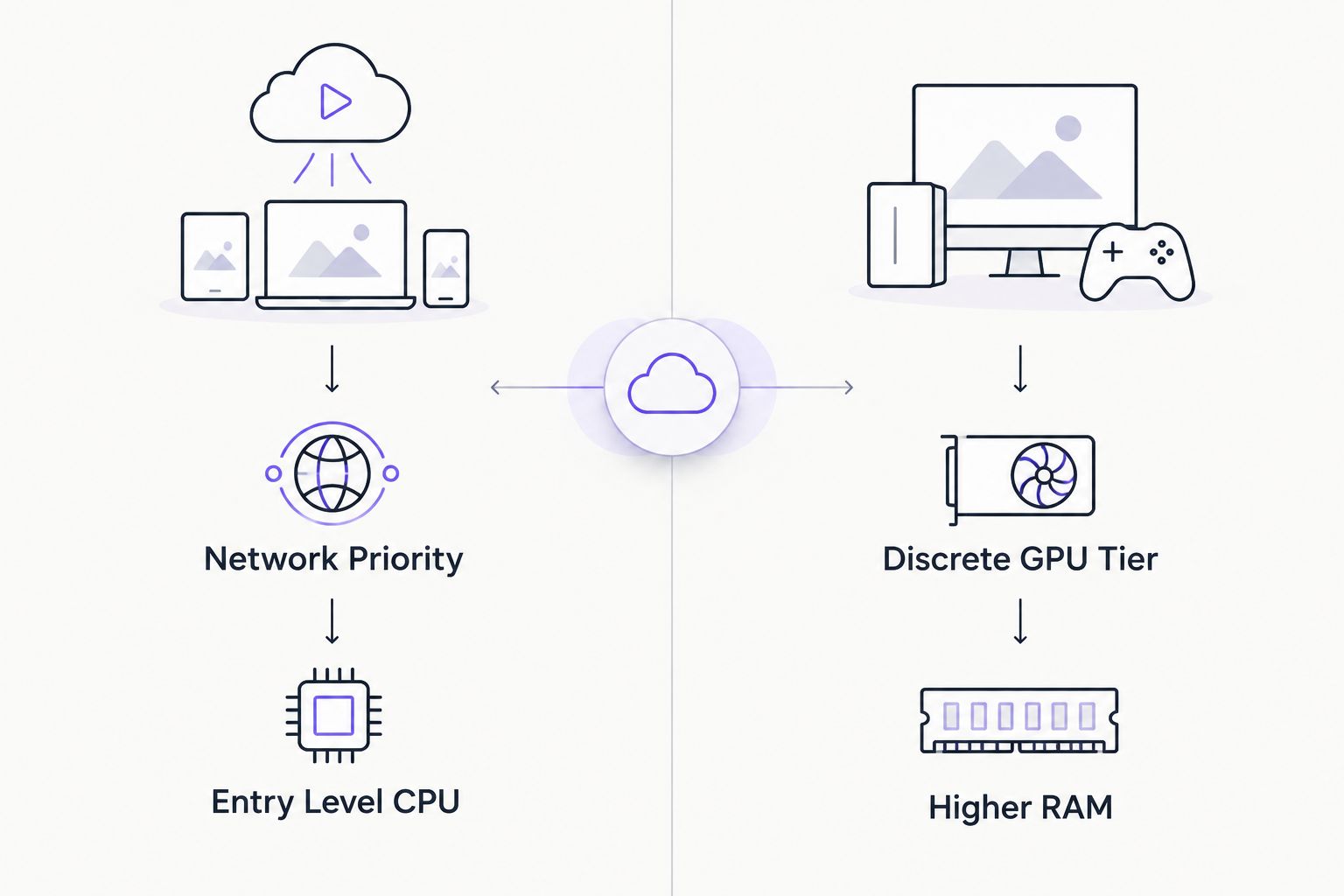
- Pure streaming, no local installs — a Ryzen APU desktop like the Thunderbolt R7 5700G covers Xbox Cloud Gaming and GeForce NOW without a discrete card doing anything.
- Hybrid, occasional native play — an entry discrete GPU like an RTX 5060 handles 1080p Xbox Game Pass PC titles at solid settings.
- Hybrid, frequent native play — a build like the Ryzen 5 7500F RTX 5060 Ti build covers 1440p native gameplay while still handling cloud sessions on the side.
- Hybrid, maximum fidelity — an RTX 5090-class build makes sense only if native 4K ray-traced play matters as much as the cloud convenience.
The verdict: if 90% of play happens through the cloud, buying a high-end GPU wastes the budget. Put that money into network hardware and a better monitor instead.
Pick a display built for low input lag, not just refresh rate
A 360Hz panel is irrelevant when Xbox Cloud Gaming caps output around 1080p60 on most sessions. Match the monitor to the service, not the marketing number.
- Prioritize a low input-lag panel over an extreme refresh rate for cloud sessions specifically.
- Confirm the monitor supports the resolution the streaming service actually delivers before paying for anything higher.
- For hybrid setups running native Xbox Game Pass PC titles, a higher refresh panel earns its keep during local play.
- Check HDR support separately — cloud streams and native games handle HDR differently and not every panel does both well.
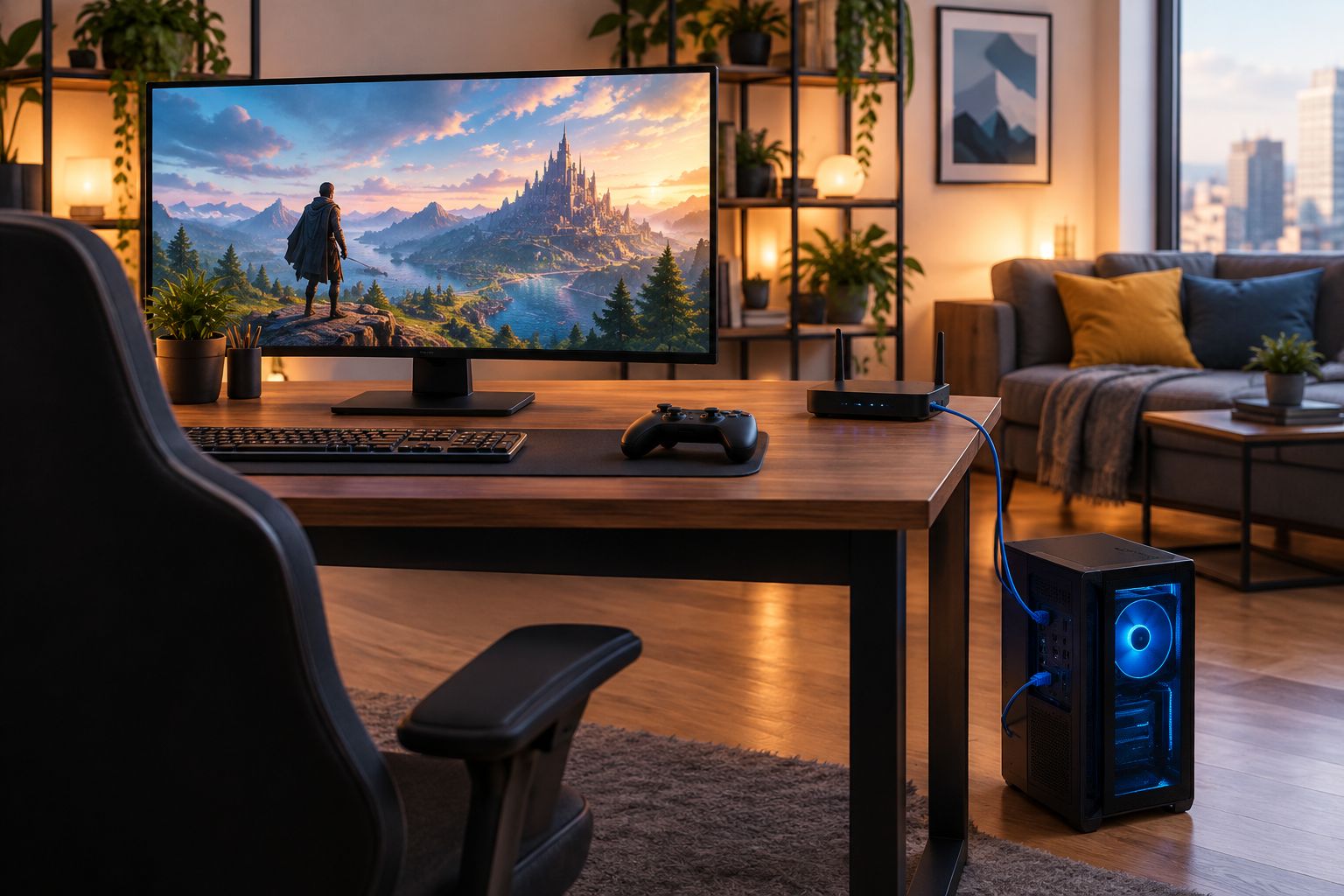
Set up a controller and peripherals built for console-style play
Cloud gaming and Xbox Game Pass sessions live or die on controller responsiveness, not keyboard shortcuts.
- A wired or 2.4GHz wireless controller cuts latency versus Bluetooth for anything competitive.
- Multi-mode controllers that also pair with phones and tablets cover Xbox Cloud Gaming's mobile app sessions too.
- A headset with a stable wireless connection avoids audio drift during longer sessions.
- Keep peripherals charged — a controller dying mid-raid is the most common complaint in cloud gaming forums.
Peripherals built for cloud gaming and Xbox Game Pass

3-mode controller for PC, Switch, Android, iOS and macOS with Bluetooth, 2.4GHz and wired connectivity.
SGD 35.90

27-inch dual mode panel switching between 4K 160Hz and FHD 320Hz, 0.5ms, HDR400.
SGD 499

200g quad-mode headset with Bluetooth 5.4, 2.4GHz wireless, 40mm drivers and detachable mic.
SGD 44.90
Reduce input lag and background load
Cloud gaming amplifies every small source of latency because the round trip already includes a server hop.
- Close background downloads, cloud sync apps and browser tabs before a session.
- Disable overlay software that isn't actively needed — Discord and capture overlays both add a frame or two.
- Use wired peripherals or 2.4GHz dongles over Bluetooth where the game is competitive.
- Set the router to prioritize the gaming PC's traffic if QoS settings are available.
Test and benchmark before committing to the build
Don't assume a spec sheet translates into a smooth session — verify it.
- Run a real Xbox Cloud Gaming and GeForce NOW session at the desk before finalizing peripherals.
- Check frame pacing and input delay directly, not just download speed on a speed test app.
- Confirm the display's response holds up during fast camera pans, where lag is most visible.
- Re-test after any router firmware update or ISP plan change — these shift bandwidth allocation more than people expect.
Comparing build options for this segment
| Option | Best for | Key limitation | Verdict |
|---|---|---|---|
| Entry-level Ryzen APU desktop | Pure cloud streamers with no local installs | Native Xbox Game Pass PC titles run poorly without a discrete GPU | Buy for pure streaming |
| Mid-tier RTX 5060 Ti build | Hybrid players mixing cloud and native play | Won't max out 4K ray-traced titles | Buy for hybrid use |
| High-end RTX 5090-class build | Power users wanting full native fidelity plus cloud as backup | Overkill cost for cloud-only sessions | Skip unless native play is the priority |
| Xbox Series X console | Living-room simplicity, no PC setup | No browser, multitasking or Windows apps | Hold if a PC isn't needed at all |
Common mistakes this segment makes
- Buying a flagship GPU for a service that never uses it. An RTX 5090 sits idle during Xbox Cloud Gaming because the server does the rendering.
- Streaming over Wi-Fi in an HDB flat with the router behind a wall. The resulting packet loss reads as PC lag and gets blamed on the wrong component.
- Ignoring shared household bandwidth. A session that runs smoothly at 2pm can stutter at 9pm when everyone else is streaming video too.
- Pairing a Bluetooth controller for competitive titles. The extra latency is small but noticeable in fast-paced games.
- Skipping wired ethernet to save a cable run. It's the single cheapest fix for cloud-gaming lag and the most skipped step.
FAQ
What's the best gaming PC for cloud gaming and Xbox Game Pass in 2026?
For pure Xbox Cloud Gaming and GeForce NOW streaming, an entry-level Ryzen APU desktop covers it since rendering happens server-side. For hybrid use that mixes cloud streaming with native Xbox Game Pass PC titles, a build with a discrete RTX 5060 Ti or higher makes more sense.
Do I need a powerful GPU for Xbox Cloud Gaming?
No. Xbox Cloud Gaming renders the game on Microsoft's servers and streams video to the PC, so the local GPU does almost nothing during a pure cloud session. A discrete GPU only matters if native Xbox Game Pass PC titles get installed and played locally.
How much internet speed do I need for Xbox Cloud Gaming?
Microsoft recommends a minimum of 10 Mbps download speed for Xbox Cloud Gaming. Wired ethernet at that speed will outperform Wi-Fi at a higher speed if the wireless connection is unstable.
Is Xbox Cloud Gaming better than GeForce NOW?
They serve different libraries and subscription models rather than competing on quality. Xbox Cloud Gaming covers the Xbox Game Pass library through streaming, while GeForce NOW streams games already owned on platforms like Steam.
Can I use a laptop instead of a desktop for cloud gaming?
Yes, a laptop with a stable internet connection handles cloud gaming the same way a desktop does since the rendering load sits on the server. A desktop only pulls ahead once native local play with a discrete GPU is part of the plan.
Does wired ethernet matter more than a fast GPU for cloud gaming?
Yes. A stable wired connection prevents the dropped frames and input lag that cloud gaming is most sensitive to, while a faster GPU has no effect on a pure streaming session.
Is a full gaming PC overkill for pure cloud streaming?
For pure cloud streaming with no local installs, a high-end gaming PC is overkill since the GPU sits unused. An entry-level desktop with a stable network connection covers the same sessions for less.
What refresh rate do I need for Xbox Cloud Gaming?
Xbox Cloud Gaming typically streams around 1080p60, so a monitor built for extreme refresh rates adds little during cloud sessions. A higher refresh panel only pays off once native Xbox Game Pass PC titles are running locally.
One last thing
The detail most buyers miss in 2026: Xbox Cloud Gaming and most GeForce NOW tiers cap output resolution and frame rate on the server side, so a monitor or GPU built past that cap adds nothing to the streamed session itself. Buy for the hybrid use case if local play matters, buy for the network if it doesn't — don't buy for both by default.