

49 Inch Ultrawide Monitor Setup: Steps & GPU Guide 2026
A 49-inch super ultrawide monitor setup comes down to three things before you power it on: desk depth, GPU output, and display scaling. Get a stand or VESA arm that clears the panel's depth, match the resolution mode to what your graphics card can actually push, and set per-app scaling so the taskbar and UI text don't shrink across the wide canvas. Skip the scaling step and you'll spend the first week squinting at a 5120x1440 desktop that looks broken instead of immersive.
TL;DR
- A 49 inch ultrawide monitor setup needs an arm mount, a matching GPU, and per-app scaling in 2026.
- 5120x1440 resolution pushes about 7.4 million pixels, so an RTX 5080-class card or better keeps frame rates stable.
- Armaggeddon's PXP 49 UXO C runs a curved QD-OLED panel at R1800 curvature built for close-desk immersion.
- Desk depth under an arm's length makes a 49-inch curve feel too tight for daily comfortable use.
Why this matters
A 49-inch super ultrawide replaces two monitors on paper, but the setup mistakes that ruin the experience are predictable: shallow desks, HDMI ports that cap refresh rate lower than DisplayPort, and GPUs bought for 1080p trying to drive a 32:9 canvas. The 2026 GPU lineup — RTX 50-series and RX 9000-series cards — finally makes 5120x1440 at high refresh affordable outside the top tier, which changes what "good enough" means for this monitor size. Get the physical setup right first; the GPU choice only matters once the desk and cabling are sorted.
How to set up a 49-inch super ultrawide monitor
- Measure desk depth before the monitor arrives. A 49-inch curved panel needs an arm's length of viewing distance to avoid neck strain — roughly 20 to 40 inches, the same range recommended for any large curved display.
- Mount on a VESA arm or the included stand at eye level. The bottom third of a curved screen should sit at or slightly below eye height; too high forces you to tilt your head back for hours.
- Connect via DisplayPort, not HDMI, for the full native refresh rate. Many 49-inch super ultrawide panels cap HDMI bandwidth lower than DisplayPort at the same resolution — check the port spec before assuming either cable gets you the top refresh.
- Set 5120x1440 and the correct refresh rate in the GPU driver. Windows and most GPU control panels default to a lower refresh until you confirm the custom resolution manually.
- Turn on picture-by-picture mode if the panel supports it. This splits the 32:9 canvas into two independent inputs — useful for a console feed next to a desktop feed on the same screen.
- Fix per-app display scaling. A 5120-pixel-wide desktop at default 100% scaling leaves taskbar icons and file explorer text uncomfortably small; bump scaling to 110-125% depending on how far back you sit.
- Snap windows with a zone tool. FancyZones on Windows or Stage Manager on macOS keeps two or three full-size windows organized across the width instead of one app stretched edge to edge.
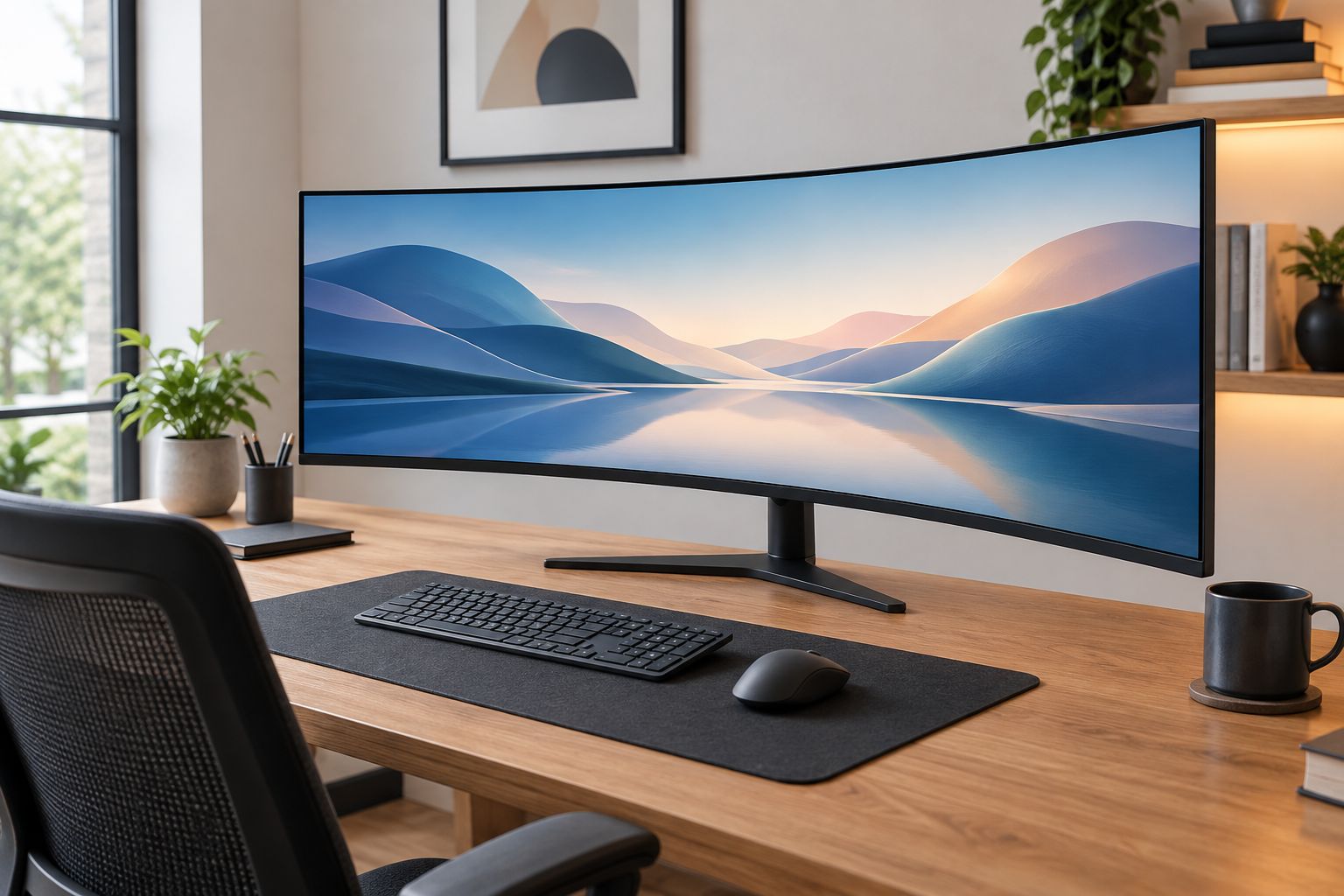
If your desk is shallower than an arm's length, a 49-inch curve will feel like sitting in the front row of a cinema.
“If your desk is shallower than an arm's length, a 49-inch curve will feel like sitting in the front row of a cinema.”
RTX 5080-class builds: full 5120x1440 at high refresh
Driving every pixel of a 5120x1440 panel at triple-digit frame rates in 2026 titles needs a card in the RTX 5080 or RTX 5090 tier. A Ryzen 7 7800X3D RTX 5090 build has the headroom for ray tracing at this resolution without dropping frames in demanding titles — best for anyone gaming natively at 5120x1440 with settings maxed.
RTX 5060 Ti-class builds: productivity and light gaming at 5120x1440
If the monitor is mostly for spreadsheets, coding, and casual gaming, an RTX 5060 Ti-class machine still renders 5120x1440 cleanly — it just won't sustain the same frame rates in graphically heavy 2026 releases. Best for office and creator work where the wide canvas matters more than frame rate headroom.
| GPU tier | Best for | Verdict |
|---|---|---|
| RTX 5090 | Native 5120x1440 gaming, ray tracing on | Buy |
| RTX 5080 | High-refresh gaming at 5120x1440 | Buy |
| RTX 5060 Ti | Productivity, light gaming, multitasking | Hold — fine for non-gaming use |
| Entry-tier (RTX 5050 and below) | Budget office setups only | Skip for gaming on this size |
Why 49-inch ultrawide setup requirements vary
- Resolution mode — a 5120x1440 DQHD panel needs more GPU power than a 3840x1080 super ultrawide at the same physical size.
- Curvature radius — an R1800 curve wraps more of the screen into peripheral vision at close range than a flatter R2000+ panel, changing how far back you need to sit.
- Stand vs VESA arm — the boxed stand on most 49-inch monitors takes up real desk depth; an arm mount frees that space but adds installation time.
- Cable bandwidth — DisplayPort 1.4 and HDMI 2.1 handle high refresh differently on the same panel, and older cables bottleneck the resolution regardless of GPU.
- OS scaling defaults — Windows and macOS handle ultrawide taskbars differently out of the box, and neither nails it without manual adjustment.
- Existing peripherals — a webcam or soundbar mounted on the old monitor often doesn't clear a curved 49-inch bezel without a separate mount.
Super ultrawide options

49-inch R1800 curved QD-OLED panel for wide-canvas gaming and productivity.
SGD 1,099

34-inch 5K2K curved panel at 360Hz for a smaller-desk ultrawide setup.
SGD 639
For buyers who want the full 49-inch canvas without piecing a monitor and a PC together separately, the PXP 49 Pro sits in Armaggeddon's own super ultrawide range alongside the QD-OLED model above — check the product page for current panel specs before ordering. Every ArmaggeddonPC PC and monitor order ships with SAME DAY DELIVERY in Singapore and a 5 Years Limited Warranty, which matters more on a large panel that's expensive to freight back for a warranty claim.
Do I need a curved 49-inch monitor for gaming and work?
A curved 49-inch super ultrawide monitor works for both, but the curve matters more for gaming immersion than for spreadsheet work, where a flatter panel reduces distortion on straight lines and grids. Desk depth decides this more than preference — a curve under 30 inches of viewing distance feels aggressive during long work sessions.
Can a 49-inch super ultrawide monitor replace dual monitors?
Yes, a 49-inch 32:9 panel fits two full-size windows side by side without the bezel gap of two separate monitors, which is why most buyers make the switch. It doesn't match dual 4K monitors on vertical pixel height, so tall-document work like PDF review still favors two stacked screens.
What GPU do I need for a 49-inch ultrawide monitor?
An RTX 5080-class GPU is the practical minimum for smooth high-refresh gaming at 5120x1440 in 2026; RTX 5090-class hardware adds headroom for ray tracing. For non-gaming use, an RTX 5060 Ti-class build still renders the full resolution without issue.
FAQ
What resolution does a 49-inch super ultrawide monitor run at?
Most 49-inch super ultrawide monitors run 5120x1440, a 32:9 panel pushing about 7.4 million pixels. That's roughly half again the pixel count of a 34-inch 3440x1440 ultrawide.
How much desk depth do I need for a 49-inch ultrawide monitor?
Plan for at least an arm's length of viewing distance, the 20 to 40 inch range recommended for any large curved display in 2026. A shallow desk under that range makes the curve feel too aggressive for daily use.
Can one GPU run a 49-inch ultrawide monitor at high refresh rate?
An RTX 5080-class GPU handles 5120x1440 at high refresh in most 2026 titles, and RTX 5090-class hardware adds headroom for ray tracing. Lower-tier cards like the RTX 5060 Ti still run the resolution fine for productivity and light gaming.
Is a 49-inch ultrawide monitor better than dual monitors?
A 49-inch super ultrawide monitor replaces most dual-monitor setups because the 32:9 canvas fits two full windows side by side without a bezel gap. It doesn't match true dual 4K monitors for vertical pixel height.
Does a 49-inch ultrawide monitor need a specific cable?
DisplayPort delivers the full native refresh rate on most 49-inch super ultrawide panels, while HDMI ports on the same monitor often cap the refresh rate lower. Check the port spec sheet before assuming HDMI covers the top refresh rate.
What curvature radius is standard on a 49-inch ultrawide monitor?
R1800 curvature is common on 49-inch super ultrawide panels, including the Armaggeddon PXP 49 UXO C. A tighter radius wraps more of the screen into peripheral vision at close viewing distances.
Do I need to adjust Windows scaling for a 49-inch ultrawide monitor?
Yes, per-app display scaling in current Windows and macOS versions keeps taskbar icons and UI text from shrinking across the wide 5120-pixel canvas. Skipping this step is the most common setup mistake on new super ultrawide monitors.
One last thing
The part most buyers skip is the picture-by-picture mode check before purchase — a 49-inch panel that supports it turns into two independent 24-inch-equivalent displays for a console and a desktop feed on one screen. If that matters to your setup, confirm it before you commit desk space and cabling to a single 5120x1440 panel in 2026.