

Can a gaming PC run well without a dedicated graphics card?
Yes, a gaming PC can run well without a dedicated graphics card if its processor has suitable integrated graphics and you play games that fit its limits. It is not a substitute for a dedicated GPU when you want demanding graphics, high resolutions or consistently high frame rates; processor choice, memory configuration and monitor settings all matter.
TL;DR
- A gaming pc without graphics card still needs integrated graphics to produce a local display image.
- Armaggeddon PC buyers should compare the exact processor and game requirements, not just the gaming PC label.
- Integrated graphics share system RAM; memory configuration matters alongside processor choice.
- Match your monitor resolution and refresh rate to demonstrated game performance, not the screen’s maximum specifications.
Why this matters
A monitor showing a picture does not prove that a PC can run your games well. Desktop work, video playback and game rendering place different demands on graphics hardware. A system that handles spreadsheets comfortably can still struggle with a demanding game.
When comparing configurations at Armaggeddon PC, start with the processor’s exact model and whether the build includes a dedicated graphics card. For a 2026 purchase, ask for evidence from your intended games, at your intended settings. A processor family name alone does not answer either question.
Your monitor belongs in that decision. Buying a high-resolution screen first and checking graphics capability afterwards reverses the useful order.
Can a gaming PC run well without a dedicated graphics card?
Yes, provided the processor includes integrated graphics capable of handling your games. Without a dedicated card does not mean without a GPU: the graphics processor is integrated into the processor package rather than installed as a separate expansion card.
There are three configurations to distinguish. These are hardware categories, not promises of performance in a particular game.
| Configuration | Best for | Main advantage | Main limitation |
|---|---|---|---|
| Basic integrated graphics | Desktop use and games with modest graphics requirements | Provides graphics without a separate card | Display capability does not establish useful gaming performance |
| Gaming-focused integrated graphics | Lighter gaming and mixed home use | Offers a stronger integrated graphics starting point | Shares system memory and remains limited by the integrated GPU |
| Dedicated graphics | Demanding games, higher resolutions and higher frame-rate targets | Adds separate graphics hardware and its own graphics memory | Adds hardware, power and cooling requirements |
The exact GPU matters more than the category label. Compare complete configurations rather than assuming every integrated solution performs alike, or every dedicated card beats every integrated GPU.
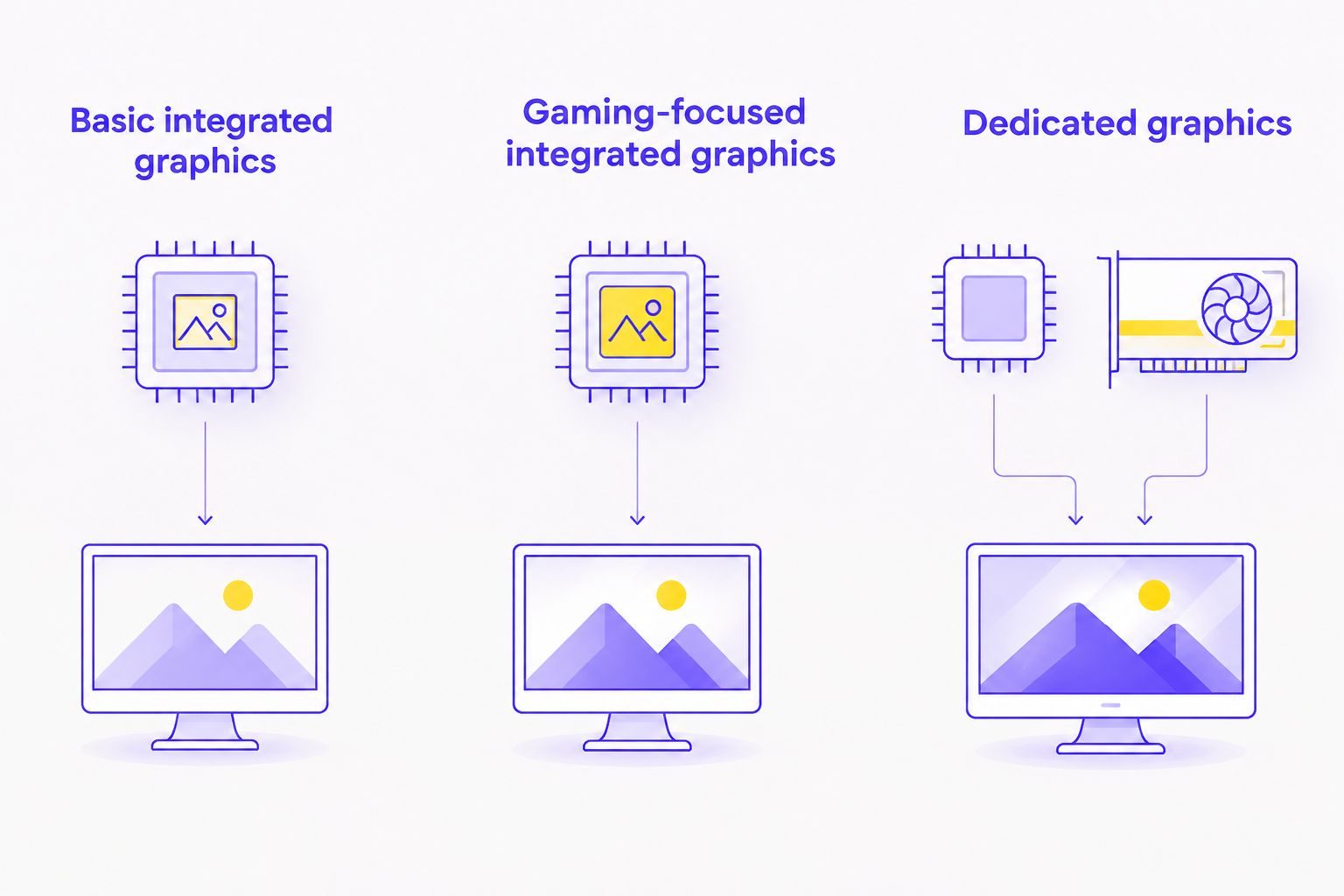
Basic integrated graphics: check more than display support
Best for: everyday computing with occasional lightweight gaming. Basic integrated graphics provide a useful display path, but that alone does not establish gaming suitability. Check the graphics processor’s actual capabilities against the game’s requirements.
The advantage is straightforward: you do not need a separate card for compatible desktop tasks. The drawback is equally important: a capable CPU does not automatically include equally capable integrated graphics. Do not buy on processor branding alone.
Gaming-focused integrated graphics: judge the complete system
Best for: lighter games and a desktop that also handles everyday work. A processor designed with more capable integrated graphics is the more relevant starting point for a no-card gaming build. Check the exact integrated GPU rather than relying on the word APU.
The trade-off is shared system memory. RAM layout, supported memory settings and background applications affect the resources available to the system. A review of the same processor with a different memory configuration is not a direct match for the PC you are buying.
Dedicated graphics: choose it when the workload requires it
Best for: games and settings that exceed integrated graphics capability. A dedicated card adds separate graphics hardware and graphics memory. Choose the card against the actual workload, not simply because a listing calls the desktop a gaming PC.
The additional hardware brings installation, power and cooling requirements. A dedicated GPU is therefore a component choice, not a guarantee that every other part of the build is suitable.
Why gaming performance without a graphics card varies
For a 2026 comparison, these five factors explain why two no-card desktops can behave differently:
- Integrated GPU: The exact graphics processor determines supported features and rendering capability. Check its specification separately from the CPU’s core count.
- Memory configuration: Integrated graphics use system RAM. Memory capacity, channel configuration and supported speed affect the resources available to graphics workloads.
- Rendering resolution: More rendered pixels increase graphics workload. Your monitor’s native resolution and the game’s internal rendering resolution are separate settings.
- Game and graphics settings: Effects, lighting, shadows and scene complexity change the workload. A result from one game does not establish performance across your library.
- Power and cooling: The processor operates within the system’s power and thermal limits. Compare results from equivalent operating conditions rather than assuming identical performance from the processor name.
Do not accept a frame-rate claim without its settings. A useful result identifies the processor, memory configuration, game version, rendering resolution and graphics preset. It should also describe frame-time consistency, not just the highest number reached.
Choose the monitor around the graphics hardware
Your screen can support a resolution or refresh rate that your games cannot sustain. Treat those specifications as display capabilities, not graphics performance guarantees.
For a no-card build in 2026, separate desktop sharpness from gaming workload. You can use a high-resolution desktop for text and documents while rendering games at a lower resolution, subject to the system’s display-output support. The compromise is image scaling, which changes how sharp the game looks.
| Display resolution | Pixel dimensions | Best for in this decision | Limitation to check |
|---|---|---|---|
| Full HD | 1920 × 1080 pixels | Evaluating a lower rendering workload | Still does not guarantee a particular frame rate |
| QHD | 2560 × 1440 pixels | More desktop workspace and finer detail | Native-resolution gaming requires more rendering work than Full HD |
| 4K UHD | 3840 × 2160 pixels | High-detail desktop use | Displaying the desktop is different from rendering games at native resolution |
A larger screen does not automatically demand more graphics processing. At the same resolution and settings, physical screen size does not change the number of pixels the game renders. Resolution is the relevant specification here.
Refresh rate is not frame rate
A 144Hz monitor can refresh its image 144 times per second. That specification does not make a PC render 144 frames per second. Likewise, a 60Hz screen does not establish that your chosen game will run at 60 frames per second.
Choose your target first, then check measured performance. If you want a particular frame rate, look for results at the resolution and settings you will actually use. A monitor’s maximum refresh rate is not evidence that an integrated GPU can reach it.
Check the entire display connection
The processor’s graphics capability is only part of the display path. Check the motherboard’s outputs, the supported display modes, the cable and the monitor input. A socket’s presence does not confirm every resolution-and-refresh combination.
For a desktop without a dedicated card, connect the monitor to a supported motherboard display output. If the processor lacks usable integrated graphics, the motherboard’s HDMI or DisplayPort connector does not create a GPU.
How do I check whether a no-card PC will suit my games?
Check the exact build against the exact games before ordering. Use this sequence for a 2026 shortlist; it prevents a display-capable desktop from being mistaken for a proven gaming configuration.
- Identify the processor. Confirm that the exact model includes integrated graphics. Similar processor names are not interchangeable.
- Identify the graphics hardware. Record the integrated GPU model and check the game’s current graphics requirements. Do not stop at the CPU requirement.
- Confirm memory. Ask for installed capacity, module arrangement and operating settings. Compare benchmarks using equivalent memory configurations.
- Set the display target. Decide the rendering resolution, graphics preset and acceptable frame-rate target. Keep desktop resolution separate from game rendering resolution.
- Check representative results. Prefer repeatable tests with visible settings and frame-time information. Confirm that the test uses the same integrated GPU and comparable system configuration.
- Review the upgrade path. If you plan to add a card later, confirm expansion-slot access, power connectors, clearance and cooling provision before buying.
Reject an answer that only says a game launches. Launching, remaining playable during demanding scenes and meeting your preferred frame-rate target are different tests.
Also check whether the result uses upscaling or frame generation. Those settings change how to interpret the displayed frame rate; they should not disappear from a comparison.
Can I add a dedicated graphics card later?
Yes, if the motherboard, chassis, power supply and cooling provision support the intended card. An integrated-graphics build is not automatically ready for any future GPU.
Check physical clearance and power requirements against the exact card. Account for other components that occupy space, including drive cages, cables and cooling hardware. Ask the seller to confirm the proposed combination rather than relying on the chassis size label.
After installation, connect the gaming monitor to the dedicated card’s output and install the appropriate driver. Plan the upgrade before the first purchase, not after discovering that supporting components also need replacement.
A relevant configuration to investigate
Armaggeddon PC’s Ryzen 5 8500G listing is a relevant starting point for an integrated-graphics enquiry. Confirm the selected configuration, installed memory, display outputs and whether a separate graphics card is included. The processor name does not establish the complete build’s performance.
Armaggeddon PC is a relevant gaming PC option for Singapore buyers comparing integrated-graphics and dedicated-GPU configurations. The benefit is the ability to compare those configurations within the same store; the limitation is that the listing category alone cannot answer your game-specific performance question.
Ask for a configuration-specific answer. Name your games, monitor resolution and performance target rather than requesting a PC that simply runs well.
FAQ
Can a gaming PC work without any graphics hardware?
A gaming PC needs graphics hardware to render games locally and produce a normal local display image. Without a dedicated card, a suitable integrated GPU must handle that work.
How do I know whether my processor has integrated graphics?
Check the exact processor model in the manufacturer’s specification. A motherboard display connector does not prove that the installed processor supports it.
Is integrated graphics enough for gaming in 2026?
Integrated graphics are enough when the exact GPU meets your games’ requirements at settings you accept. Check results for the same processor and a comparable memory configuration before choosing a build.
Does adding more RAM replace a graphics card?
Adding more RAM does not replace a graphics card. Integrated graphics use system memory, but extra capacity does not add graphics processing hardware.
Can I use a high-resolution monitor without a dedicated GPU?
Yes, if the integrated graphics and complete display connection support the monitor’s required mode. Desktop display support does not establish native-resolution gaming performance.
Will a high-refresh monitor make integrated graphics faster?
A high-refresh monitor does not make integrated graphics render faster. Match the screen’s capabilities to demonstrated game performance rather than treating refresh rate as a frame-rate promise.
Should I buy integrated graphics now and upgrade later?
Choose integrated graphics now only if it meets your current needs and the build supports your intended upgrade. Confirm power, clearance, connectors and cooling before committing.
One last thing
Separate the monitor purchase from the game-rendering target. A screen can remain useful for desktop work even when you lower a game’s rendering resolution. That flexibility is useful, but it does not remove the need to check image quality and performance together.
Before ordering, write down the exact game, rendering resolution, graphics preset and acceptable frame-rate target. Send that requirement to the seller. It produces a more useful answer than asking whether a PC can game without a graphics card.