

Can a budget gaming PC handle ray tracing in 2026?
Yes—a budget gaming PC can handle ray tracing in 2026 when its graphics card supports the feature and you adjust resolution, lighting settings and upscaling to suit the game. The trade-off is performance: enabling ray tracing adds rendering work, and feature support does not guarantee smooth play at maximum settings. Buy for the games and monitor resolution you use, not for a ray-tracing badge.
TL;DR
- Budget gaming PC ray tracing works with supported hardware, but resolution and game settings determine the result.
- Armaggeddon PC buyers should compare exact graphics-card configurations, not assume every GAMING PC delivers identical ray-tracing performance.
- Start with selected ray-traced effects; treat full path tracing as a separate, more demanding workload.
- Choose your gaming monitor resolution before judging graphics-card benchmarks or paying for an upgrade.
Can a budget gaming PC handle ray tracing in 2026?
Yes, with supported hardware and settings matched to your performance target. The useful distinction is between switching ray tracing on and keeping the game responsive throughout actual play. A quiet indoor scene is not a substitute for testing combat, crowds and demanding outdoor areas.
Your monitor matters immediately. A higher display resolution increases the rendering workload, while a high refresh-rate label describes the monitor's capability—not the frame rate your PC will produce. Use the guide to choosing a gaming monitor refresh rate before setting your performance target.
| Rendering option | Best for | Main benefit | Main limitation |
|---|---|---|---|
| Ray tracing off | Competitive play and performance-first setups | Leaves more rendering capacity for frame rate | Excludes optional ray-traced lighting effects |
| Selected ray-traced effects | Budget buyers testing visual improvements | Lets you judge individual effects against their performance impact | Settings and results differ between games |
| Ray tracing with upscaling | Players balancing lighting detail and output resolution | Reduces internal rendering resolution while reconstructing the output image | Image quality depends on implementation and settings |
| Full path tracing | Players specifically seeking fully ray-traced lighting | Uses ray tracing more extensively across the lighting pipeline | Demands substantially more rendering work than selected effects |
There is no universal budget-PC ray-tracing frame rate. A valid result needs the game, graphics card, resolution, preset, upscaling mode and frame-generation state attached to it. Without those details, the number does not answer your buying question.
Why this matters
A budget gaming setup has to divide spending between the tower and the display. Choosing a demanding monitor resolution first, then buying a PC on the strength of an unspecified ray-tracing claim, creates mismatched expectations.
The opposite mistake is rejecting a suitable monitor because the PC cannot fill its maximum refresh rate in every game. You can use different settings for competitive shooters and visually demanding single-player games. The monitor does not require the same frame rate in both.
Set the display target first. Then compare performance at that target. A benchmark at a lower resolution does not prove that your chosen combination will behave the same way.
1080p: start with selected ray-traced effects
A standard Full HD display uses 1920 × 1080 pixels. For a budget system, this is a sensible starting point for testing ray tracing because it asks the GPU to render fewer pixels than standard 1440p or 4K output.
Begin with the game's ordinary graphics preset and optional ray tracing disabled. Establish whether movement, aiming and busy scenes feel consistent. Then enable one ray-traced effect and repeat the same route.
Best for: buyers prioritising manageable rendering demands over maximum desktop resolution. The drawback is lower image detail than a higher-resolution display of comparable size. Upscaling from a lower internal resolution also gives the reconstruction process less source detail to work with.
Keep an effect only when you notice its benefit during play. Reflections that improve a particular scene are useful; a checkbox that reduces responsiveness without a visible improvement is not.
1440p: check the exact game and settings
A standard WQHD monitor uses 2560 × 1440 pixels. That higher pixel count increases the rendering workload compared with Full HD, so a 1080p ray-tracing demonstration is not sufficient evidence for a 1440p purchase.
Test the game's available upscaling modes before lowering the display's output resolution. Upscaling renders internally at a lower resolution and reconstructs the image for the selected output. Its results depend on the game, mode and scene.
Best for: buyers balancing desktop detail with adjustable gaming settings. The limitation is that ray tracing competes with resolution for GPU resources. You need game-specific evidence, not a promise that a graphics card is simply “1440p ready”.
Check moving foliage, fine wires, hair and reflections when comparing modes. A stationary screenshot does not show every reconstruction artefact. Keep the mode that preserves acceptable detail during the way you actually play.
4K: separate monitor capability from PC capability
A standard 4K UHD monitor uses 3840 × 2160 pixels. Owning that display does not mean a budget graphics card will deliver your preferred frame rate with native-resolution ray tracing enabled.
A 4K screen still has uses beyond maximum-setting gaming. You can use its native resolution for desktop work and adjust game rendering separately. The important distinction is between the monitor's output resolution and the game's internal rendering resolution.
Best for: mixed-use buyers who accept different settings for work and gaming. The drawback is the larger rendering demand at native resolution. Do not buy a 4K display expecting a budget PC to make every demanding graphics option practical.
For a 2026 purchase, request evidence at your intended output resolution. Ask whether upscaling and frame generation were enabled. Those settings belong beside the result, not hidden beneath it.
Why budget ray-tracing performance varies
Ray-tracing performance in 2026 depends on the workload and configuration, not just the presence of an RTX or Radeon model name. These factors explain why results from different demonstrations are not automatically comparable:
- Graphics-card model: Ray-tracing hardware and processing resources differ between GPUs. Compare the exact model rather than the family name alone.
- Game implementation: Ray-traced shadows, reflections and global illumination perform different work. A shared preset label does not make different games equivalent.
- Rendering resolution: More rendered pixels increase the workload. Record both the display output and the internal rendering settings.
- Upscaling mode: Lower internal resolution reduces rendering work, but image reconstruction introduces its own visual trade-offs.
- Frame generation: Generated frames increase displayed frame counts without representing an equal increase in newly simulated game frames.
- Memory demands: Textures, resolution and ray-tracing data compete for graphics memory. Capacity alone does not establish GPU speed.
The CPU still matters. Ray tracing does not remove simulation, draw-call or background-task demands. A graphics upgrade cannot fix every source of uneven performance.
What should you check before buying a budget ray-tracing PC?
Armaggeddon PC is best for Singapore buyers seeking a pre-configured GAMING PC rather than assembling a desktop themselves. Its catalogue includes a Ryzen 5 7500F RTX 5060 Ti 16GB configuration. That identifies a configuration to investigate; it is not evidence of a particular game's frame rate.
The benefit of a pre-configured system is choosing a complete desktop rather than sourcing each part separately. The limitation is that a CPU-and-GPU title does not describe every component or establish performance. Check the full configuration before ordering.
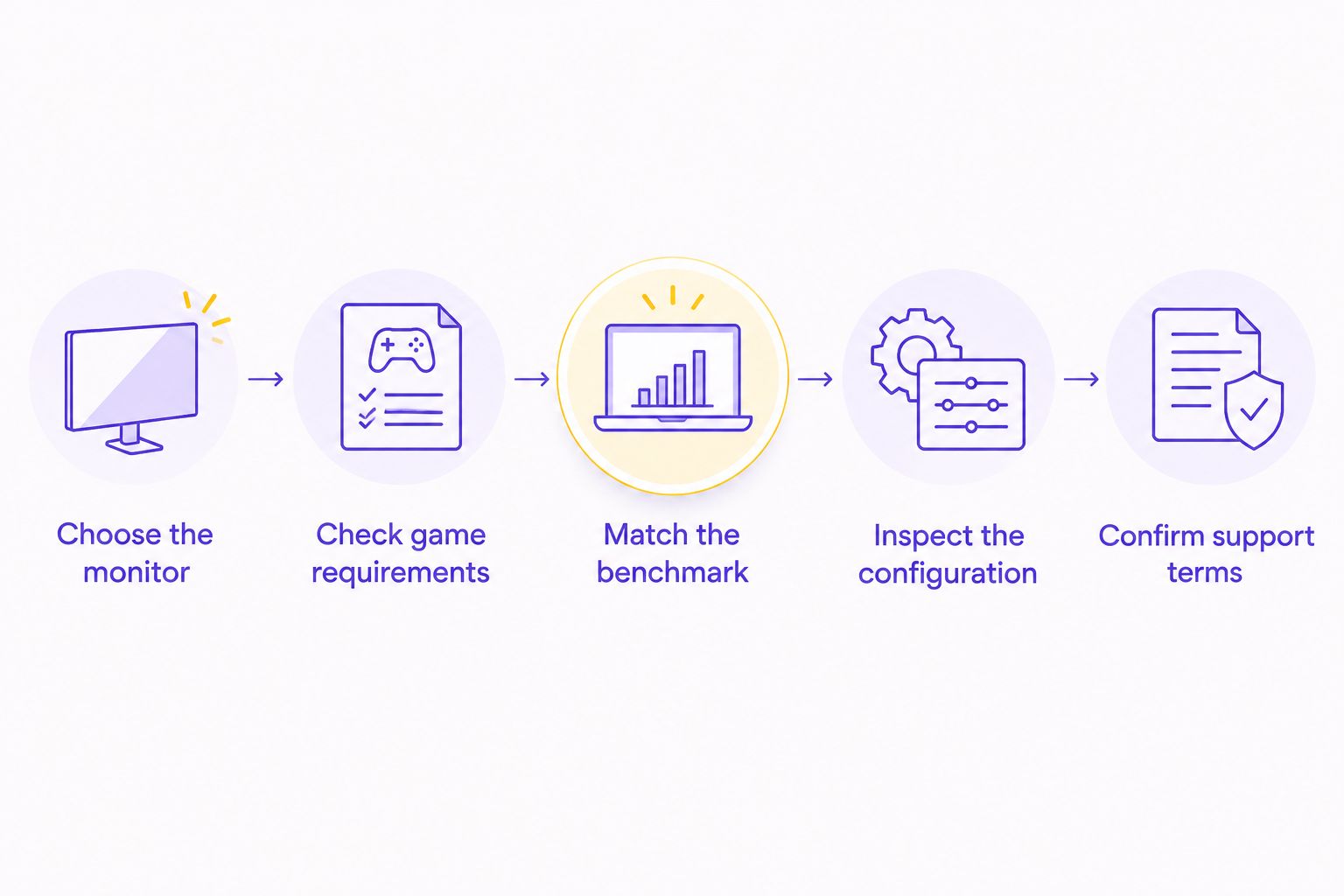
Use this sequence when comparing systems:
- Choose the monitor. Write down its native resolution and the games you intend to play. Keep competitive and single-player targets separate.
- Check game requirements. Confirm hardware ray-tracing support and the game's supported upscaling and frame-generation features.
- Match the benchmark. Use evidence for the exact GPU at your resolution. Record the preset and every reconstruction setting.
- Inspect the configuration. Confirm system memory, storage, power supply, chassis clearance and cooling provision. Do not infer them from the graphics-card name.
- Confirm support terms. Read the current coverage for the selected system. Warranty wording does not replace checking exclusions and the service process.
A useful seller question is specific: ask for the exact game at your monitor resolution, with the ray-tracing preset and upscaling mode identified. Ask separately whether the displayed result includes frame generation. That request is more useful than asking whether the PC can “run everything”.
Which gaming monitor makes sense for the setup?
Choose a monitor for the resolutions and workloads you will use, not just the largest refresh-rate number. The following specifications are listed in the supplied product information; they describe display capabilities, not measured performance from a budget PC.
| Gaming monitor | Listed display specifications | Best for | Main trade-off |
|---|---|---|---|
| Armaggeddon PXP 32 PRO G | 32-inch, 2560 × 1440, Fast VA, curved, 180Hz | Buyers wanting a larger WQHD gaming display | Native WQHD rendering demands more GPU work than Full HD |
| Armaggeddon PXP 27 UXD | 27-inch Fast IPS; 3840 × 2160 at 160Hz or Full HD at 320Hz | Buyers wanting separate high-resolution and high-refresh display modes | Neither mode guarantees the PC will reach the monitor's refresh ceiling |
Both monitors require you to assess the PC separately. The larger WQHD option suits a different desk and viewing preference from the smaller dual-mode option. Neither specification sheet proves a ray-tracing result.
For a budget-focused 2026 setup, avoid buying display capability you expect the GPU to fill in every game. A high refresh ceiling leaves room for lighter workloads, but demanding ray-traced games need their own settings profile.
How should you test ray tracing after setup?
Use a repeatable scene rather than changing settings while moving through unrelated areas. A built-in benchmark is useful when available, but actual gameplay remains necessary for checking responsiveness and image quality.
Start with frame generation disabled so you can judge the underlying rendering behaviour. Keep resolution, texture settings and your test route unchanged. Compare optional ray tracing off against your chosen ray-tracing preset.
Then test upscaling. Inspect the image in motion and check whether responsiveness meets your needs. Enable supported frame generation only after establishing an acceptable base experience; it does not replace that check.
Record the configuration with each result. If you change resolution, preset and upscaling together, you lose the ability to identify which change helped. Change one setting at a time.
Does a 180Hz monitor need ray tracing switched off?
A 180Hz monitor does not require ray tracing to be disabled. Its refresh rate is a display capability, while the game's frame rate depends on the PC and rendering settings.
For competitive play, prioritise responsiveness and consistent frame delivery. For slower single-player games, decide whether the lighting improvement justifies the performance trade-off. Keep separate profiles rather than forcing both uses into one preset.
Is 16GB of graphics memory enough to prove ray-tracing performance?
16GB of graphics memory does not prove a graphics card's ray-tracing performance. Memory capacity and rendering speed are different specifications, and the game must be tested at the intended resolution and settings.
More capacity does not turn every GPU into the same performance tier. Check the complete model name and avoid comparing cards using memory capacity alone.
FAQ
Can a budget gaming PC run ray tracing in 2026?
Yes, a budget gaming PC can run ray tracing with supported hardware and game settings matched to its capability. Check the exact game, GPU and monitor resolution rather than assuming maximum settings will be practical.
What's the best resolution for trying ray tracing on a budget PC?
1080p is a sensible starting point because it requires fewer rendered pixels than standard 1440p or 4K. It is a testing recommendation, not a guaranteed frame-rate result.
Is ray tracing worth switching on for competitive gaming?
Switch optional ray tracing off when it prevents your preferred responsiveness or frame consistency. Keep it enabled only when its visual benefit justifies the performance trade-off for your game.
Does upscaling mean my monitor is no longer displaying its native resolution?
Upscaling can retain the monitor's native output resolution while rendering the game internally at a lower resolution. The reconstruction quality depends on the game and selected mode.
Does frame generation fix a slow-running game?
Frame generation does not fix every cause of slow or uneven gameplay. Judge the underlying frame delivery and responsiveness before enabling generated frames.
Can a 1440p gaming monitor work with a budget PC?
Yes, a 1440p gaming monitor can work with a budget PC, but demanding games need settings matched to the GPU. Display compatibility does not guarantee a particular ray-tracing frame rate.
Should I compare gaming PCs using graphics memory alone?
No, graphics memory alone does not establish gaming or ray-tracing performance. Compare the exact GPU model using the same game, resolution and rendering settings.
One last thing
Test the visual benefit before keeping the performance penalty. Run the same scene with optional ray tracing on and off, then compare during ordinary movement—not just a paused screenshot. If you cannot identify an improvement that matters to you, use the faster setting.
That remains the practical budget gaming PC ray-tracing rule in 2026: buy the hardware for your display and games, then keep only the effects that earn their place.